You drag a file into the Media Library, the progress bar starts, and WordPress stops with a red notice: “Sorry, you are not allowed to upload this file type.” It happens with SVG logos, JSON exports, font files, 3D models, e-book formats and plenty of everyday files that a client just sent you. The good news is that the message always comes from one of a few checks inside WordPress, and once you know which one is blocking the file, the fix takes a few minutes.
This guide explains why WordPress refuses some files, how to tell which check is failing, and how to allow a new file type safely with a small snippet instead of switching off the protection for everyone.
Why WordPress blocks some file types
WordPress does not accept any file you throw at it. Every upload goes through an allow-list of extensions and MIME types, and a file that is not on the list is rejected with the “not allowed to upload this file type” message. Older WordPress versions showed a different wording for the same check: “Sorry, this file type is not permitted for security reasons.” If you see either message, you are dealing with the same problem.
The list exists for a good reason. A media folder that accepts executable files, scripts or HTML pages is an open door: someone who can upload a file could serve a phishing page from your domain or, on a badly configured server, run code. So WordPress starts strict and lets site owners widen the list deliberately.
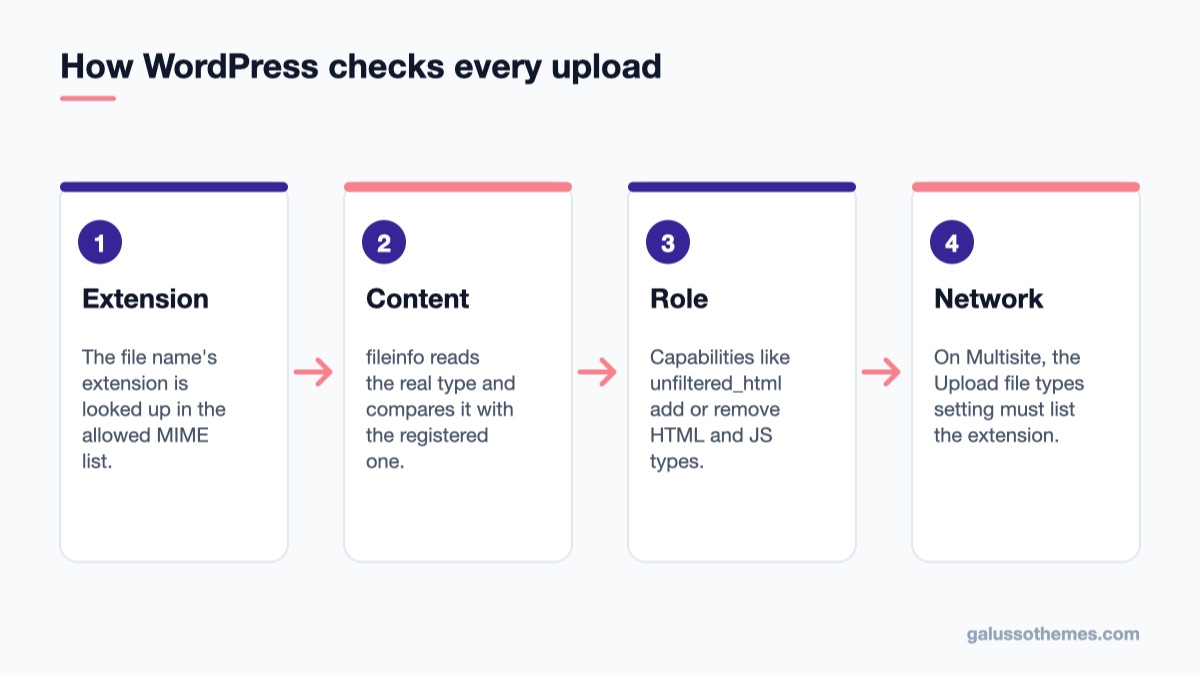
Three layers decide whether an upload passes:
An upload must pass the allowed list, the content check and the role or network limits.
The allowed list. The function get_allowed_mime_types() builds the list from WordPress’s built-in types (images, documents, audio, video, archives and more). It always removes exe and swf, and it removes htm|html and js for any user who does not have the unfiltered_html capability. The upload_mimes filter then lets themes and plugins change that list.
The content check. The function wp_check_filetype_and_ext() does not trust the file name. It looks at the real contents (with wp_get_image_mime() for images and PHP’s fileinfo extension for other files) and compares the detected type with the type the extension claims. If they do not match and the mismatch is not one of a few tolerated cases, the file is rejected, even when the extension is on the list.
The user’s role. Because the list depends on capabilities, an administrator and an author can get different answers for the same file. On Multisite, the network’s own “Upload file types” setting is a further restriction.
Knowing these three layers is the whole trick. The rest of this article is about finding out which one stopped your file.
Step 1: Confirm what the file really is
Before changing any code, make sure the file is what its name says. A surprising number of “file type” errors are files that were renamed by hand, exported with the wrong extension, or saved by a phone in a different format than expected.
A photo from an iPhone named photo.jpg might actually be HEIC data. For images, WordPress detects the real type and may rename the file to the correct extension, but if the real format is not on the allowed list the upload fails.
A “PDF” that was downloaded from an email client may be an HTML page that says “download failed”.
An SVG exported from a design tool is plain XML text, which is fine, but an SVG with embedded scripts is exactly the kind of file WordPress is designed to stop.
Open the file in the program that created it and export it again with the right extension. If the error disappears, you are done. If you are working with product data rather than media, the CSV route is different again: our guide on importing products into WooCommerce with a CSV file covers the importer’s own upload step.
Step 2: Check whether the extension is allowed for your role
Next, test with the right account. Log in as an administrator and try the same upload. If an administrator can upload the file but an editor or author cannot, the file is probably HTML or JavaScript, which are tied to the unfiltered_html capability. On a single site, administrators and editors have that capability by default, but it can be removed with the DISALLOW_UNFILTERED_HTML constant in wp-config.php or by a security or role-editor plugin. On Multisite, only Super Admins have it.
In most cases the honest fix here is not to allow HTML uploads at all. Put the HTML content into a page, or zip the files if a client needs to download them (ZIP is on the default list).
If the extension is something WordPress simply does not include by default, such as json, svg or a specialist format like gpx, move on to Step 3.
Step 3: Allow a new file type with the upload_mimes filter
The official way to add a file type is the upload_mimes filter. It receives an array of MIME types keyed by an extension pattern (for example 'jpg|jpeg|jpe' => 'image/jpeg'), and whatever you return becomes the allowed list.
Do not put this code in a parent theme’s functions.php, because a theme update will remove it. Use a child theme, a code-snippets plugin, or a must-use plugin. A must-use plugin is the most reliable choice, since it keeps working when you switch themes.
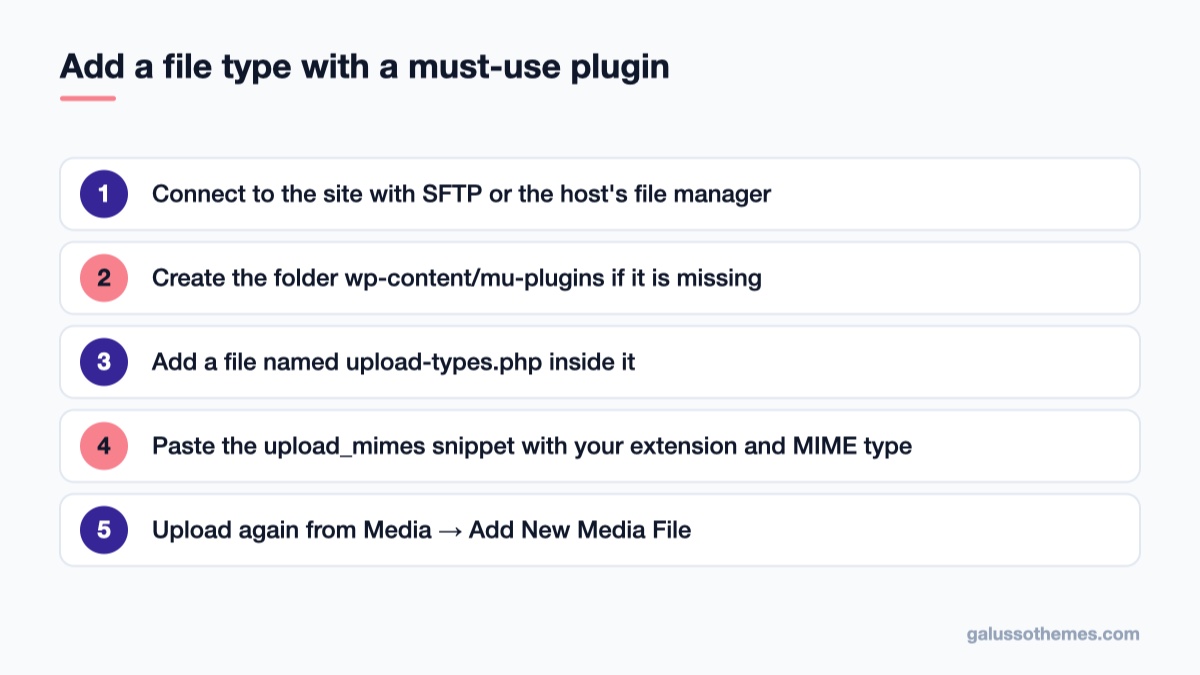
A must-use plugin keeps the new upload type when you change or update themes.
Create a must-use plugin
Connect to your site with SFTP or your host’s file manager.
Open wp-content/ and create a folder named mu-plugins if it does not exist.
Create a file called upload-types.php inside it.
Paste the snippet below, change the extension and MIME type to the ones you need, and save.
Go back to Media → Add New Media File and upload the file again.
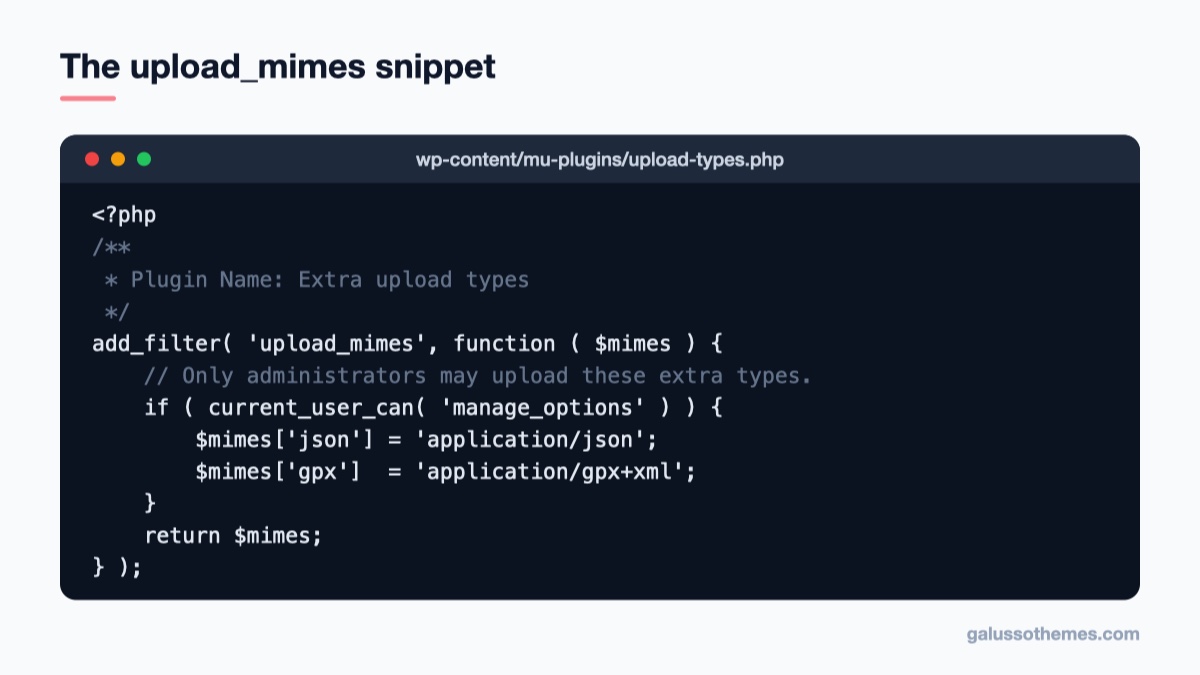
Only administrators get the extra JSON and GPX types; everyone else keeps the default list.
<?php
/**
 * Plugin Name: Extra upload types
 */
add_filter( 'upload_mimes', function ( $mimes ) {
    // Only administrators may upload these extra types.
    if ( current_user_can( 'manage_options' ) ) {
        $mimes['json'] = 'application/json';
        $mimes['gpx']  = 'application/gpx+xml';
    }
    return $mimes;
} );
Three details matter here:
Add only what you need. Every new type widens what can land in wp-content/uploads. Allow the one or two extensions you actually use.
Limit it by capability. The current_user_can( 'manage_options' ) check means only administrators get the extra types. Authors and shop managers keep the default list.
Use the correct MIME type. Look it up in the IANA media types registry or the format’s own documentation rather than guessing. A wrong value causes the content check in Step 4 to fail.
You can also remove types with the same filter. For example, unset( $mimes['exe'] ); is the pattern shown in the user notes on the official reference page, and the same approach works for any built-in type you never want uploaded, such as audio files on a site that has no use for them.
Step 4: When the type is allowed but the upload still fails
This is the case that confuses most people: you added the extension, you are logged in as an administrator, and WordPress still says you are not allowed to upload the file. The cause is almost always the content check in wp_check_filetype_and_ext().
When the PHP fileinfo extension is available, WordPress reads the real MIME type of the file and compares it with the type you registered. The rules are strict on purpose:
If the server detects a generic binary type such as application/octet-stream, the file passes only when the registered type belongs to the application, video or audio group.
For audio and video, only the major type has to match, so a video in a slightly different container is forgiven.
If the server detects text/plain, the file passes only for a short list of text-like registered types such as CSV.
Everything else must match exactly. If it does not, WordPress assumes the file is dangerous and rejects it.
Text-based formats are the usual victims. Depending on the server’s file detection library, a JSON or GPX file may be reported as text/plain or a generic XML type, which does not match the application/json or application/gpx+xml you registered.
Allow a known mismatch for one extension
The function ends with the wp_check_filetype_and_ext filter, which receives the result, the file path, the file name, the allowed MIME list and the detected real MIME type. You can use it to accept one specific, known mismatch. Keep the check as narrow as possible: one extension, a short list of detected types, and only when WordPress has already rejected the file.
Add it to the same must-use plugin file. Never write a version that accepts any extension or any detected type; at that point you have turned the safety check off.
Uploading SVG files safely
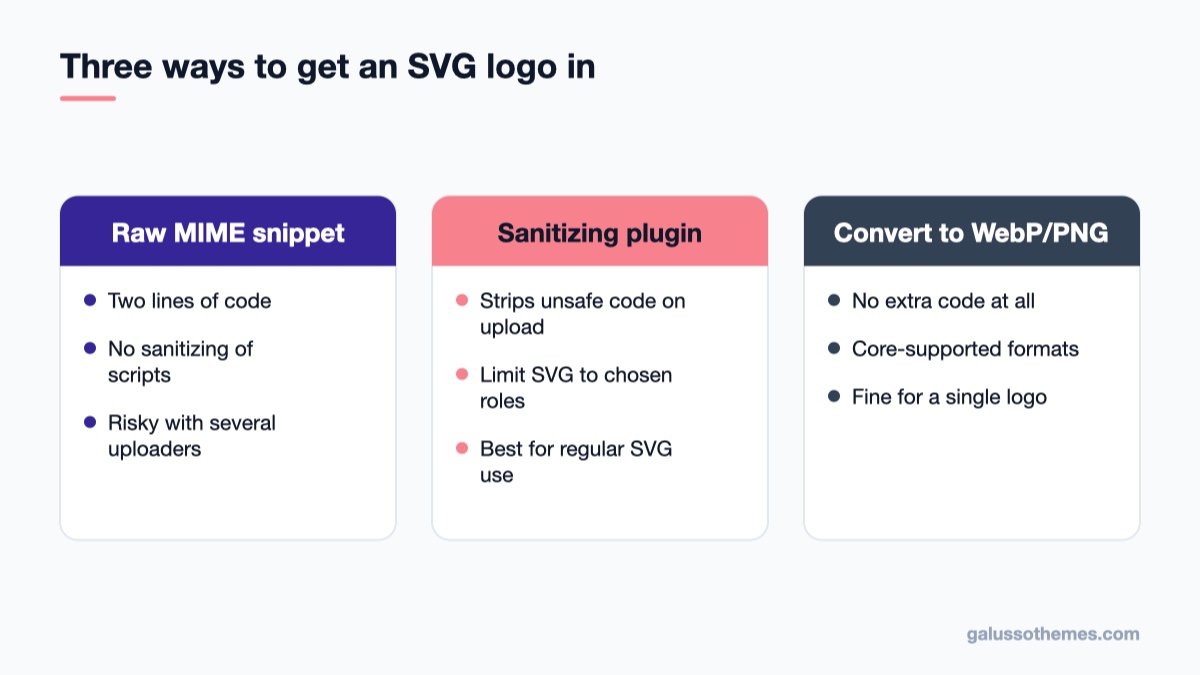
SVG is the most common request, especially for logos in theme headers. WordPress core does not allow SVG uploads by default, and you should not allow them with a two-line upload_mimes snippet alone. An SVG file is XML that can contain scripts and external references, so an unchecked SVG is a security risk, particularly on sites where several people can upload.
The safer route is a dedicated plugin that sanitizes each SVG on upload, such as Safe SVG from the WordPress.org directory. It strips unsafe code from the file before it is stored and lets you decide which roles may upload SVGs. If you only need one logo, another option is to convert it to PNG or WebP; WebP has been supported in core since WordPress 5.8 and AVIF since 6.5, as long as the server’s image library supports the format.
A sanitizing plugin or a converted image is safer than a raw MIME snippet.
The ALLOW_UNFILTERED_UPLOADS shortcut and why to avoid it
Many older tutorials suggest adding this line to wp-config.php:
define( 'ALLOW_UNFILTERED_UPLOADS', true );
This constant switches on the unfiltered_upload capability, which skips the file type check for administrators (on Multisite, only for Super Admins). It does make the error go away, but it lets those accounts upload any file at all, including formats that should never sit in a public uploads folder. If an administrator account is ever compromised, that becomes a direct path to abuse.
If you use it at all, use it as a temporary switch: add the line, upload the one file, then remove the line straight away. For anything you upload more than once, the filter from Step 3 is the right fix.
WordPress Multisite: the network setting
On a Multisite network there is one more list to check. Go to Network Admin → Settings → Network Settings and scroll to Upload Settings. The Upload file types field holds a space-separated list of extensions that sites on the network may upload. An extension that is missing here is blocked on every subsite, whatever your snippet says. Add the extension (for example json), save, and test again. The same section also sets the maximum upload file size for the network.
Common mistakes
Confusing this error with a size limit. “Exceeds the maximum upload size for this site” is a different problem, controlled by PHP’s upload_max_filesize and post_max_size, not by the MIME list.
Editing the parent theme. The snippet disappears with the next theme update and the error returns weeks later. Use a must-use plugin or a child theme.
Typos in the MIME type.application/json is not the same as text/json. A wrong type passes Step 3 but fails Step 4.
Two plugins fighting over the list. Some media and security plugins also filter upload_mimes. If your snippet seems ignored, temporarily deactivate other media plugins, or add a higher priority to your filter (for example add_filter( 'upload_mimes', 'callback', 99 )).
Caching the error. A page cache does not affect uploads, but an aggressive object cache or a stale admin tab can. Reload the Media screen after changing code.
Forgetting the REST API. The block editor uploads through the REST API, which uses the same checks. If the classic uploader works and the editor fails with “The response is not a valid JSON response”, that is a different issue; see our fix for the invalid JSON response error.
Where this matters for online shops
Store owners hit this error more often than bloggers, because shops deal with many file formats: size charts as PDF, product manuals, CAD files for spare parts, or digital downloads. Keep two rules in mind. Files that customers buy as downloadable products should be uploaded by an administrator or shop manager only, and only in formats you have explicitly allowed. And if customers need to send you files (artwork for printing, for example), use a dedicated upload plugin with its own restrictions instead of widening the Media Library list; our roundup of WooCommerce upload file plugins compares the options.
If you sell technical products with manuals and spec sheets, a theme with clean product tabs makes those files easy to find. GT Electrical is built for electronics and appliance stores, and GT Audio suits audio gear shops where downloadable guides are part of the product page. You can also browse our free WordPress themes.
Quick checklist
Re-export the file so its extension matches its real format.
Try the upload as an administrator to rule out role limits.
Add the extension with upload_mimes in a must-use plugin, limited to administrators.
If it still fails, check for a content mismatch and allow it narrowly with wp_check_filetype_and_ext.
For SVG, use a sanitizing plugin rather than a raw MIME snippet.
On Multisite, add the extension under Network Settings → Upload file types.
Avoid leaving ALLOW_UNFILTERED_UPLOADS switched on.
Start with the file itself, then work outward through the allowed list, the content check and the network settings. Most sites need nothing more than a three-line filter for one extra file type. Once your upload works, take a minute to note the snippet in your site documentation so the next person knows why it exists. If the site is in the middle of other maintenance work, our guide to fixing WordPress stuck in maintenance mode covers another error that often follows a rushed update.
Hello everyone! We’re Galussothemes content team, we love to write new blogs for WordPress Joomla! and other tech niches everyday. We’re talented young people who hold a strong passion for website development, designing, and marketing. Feel free to leave your comment if you have any issues or questions with our blogs.
Interesting with this topic? You also interest with this articles: