A customer pays, the order shows up in your dashboard, and then the support message arrives: “I never got a confirmation email.” Sometimes you didn’t get the “New order” notification either. When WooCommerce stops sending emails, the shop still works, but customers start to doubt it, and missed admin notifications mean orders sit unpacked.
This guide shows you how to find out where the email gets lost, using the tools WooCommerce and WordPress already include, and how to fix each cause. Work through the checks in order. Each one rules out a whole group of causes, so you don’t end up changing settings at random.
How a WooCommerce email travels
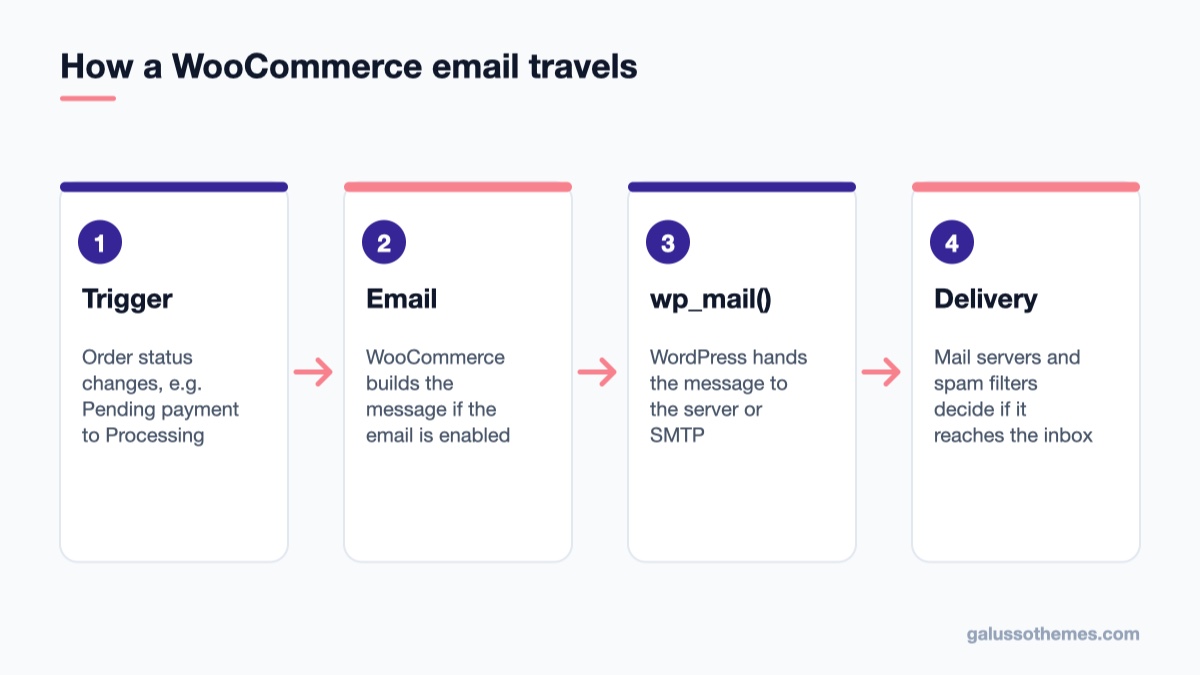
An order email can fail at any of these four stages, and each needs a different fix.
Knowing the path an email takes makes troubleshooting much faster. There are four stages, and an email can fail at any of them:
The trigger. An order changes status, for example from Pending payment to Processing. WooCommerce ties each email to specific status changes.
The email class. If that email type is enabled and has a recipient, WooCommerce builds the message from its template.
wp_mail(). WooCommerce passes the message to the WordPress core function wp_mail(), which by default hands it to your web server’s mail system through PHPMailer.
Delivery. A mail server accepts the message and tries to deliver it to the customer’s mailbox, where spam filters decide whether it lands in the inbox, the spam folder or nowhere.
The official WooCommerce email troubleshooting guide makes the key point: because WooCommerce uses wp_mail(), most “WooCommerce isn’t sending emails” problems are really problems with the server’s mail function or with delivery further down the chain. Stages 1 and 2 are WooCommerce’s job, stages 3 and 4 are your hosting and email setup. The checks below go through those stages one at a time.
Check 1: Should an email have been sent at all?
Start with the order itself. Open WooCommerce → Orders and look at the status of an order that didn’t get an email.
Pending payment orders don’t send customer emails. The order exists, but payment never finished: the customer left the payment page or the card was declined. That is expected behaviour, not an email fault.
If orders that were paid are still stuck in Pending payment, the problem is the payment gateway, not email. The gateway never told WooCommerce the payment went through, so the status never changed and no email was triggered. Check the gateway plugin’s logs and documentation (webhooks are a common cause).
A PHP fatal error from a plugin, theme or custom snippet can also stop the status change, and with it the email.
If you’re unsure which status sends which email, our guide to WooCommerce order statuses explains what each status means and when an order moves between them.
Check 2: Is the email turned on and addressed correctly?
Go to WooCommerce → Settings → Emails. The table lists every email WooCommerce can send: New order, Cancelled order, Failed order, Order on-hold, Processing order, Completed order, Refunded order, Customer invoice / Order details, Customer note, Reset password and New account (the exact list can change with your version and extensions).
Click Manage next to the email that didn’t arrive.
Make sure Enable this email notification is ticked.
For admin emails such as New order, check the Recipient(s) field. It often still holds an old address from the developer who built the site, or a typo. Separate several addresses with commas.
Save the changes.
On the main Emails screen, also look at the Email sender options: the “From” name and “From” address. We come back to the From address in Check 5, because it is one of the most common reasons emails are sent but never arrive.
Check 3: Read the transactional email log
Since WooCommerce 10.9 every email attempt is logged as Sent, Failed, Disabled or Skipped.
Since WooCommerce 10.9, core keeps a log of every transactional email it tries to send, so you no longer need a separate logging plugin to see what happened. The WooCommerce team describes the feature in Keeping track of commerce emails on the developer blog.
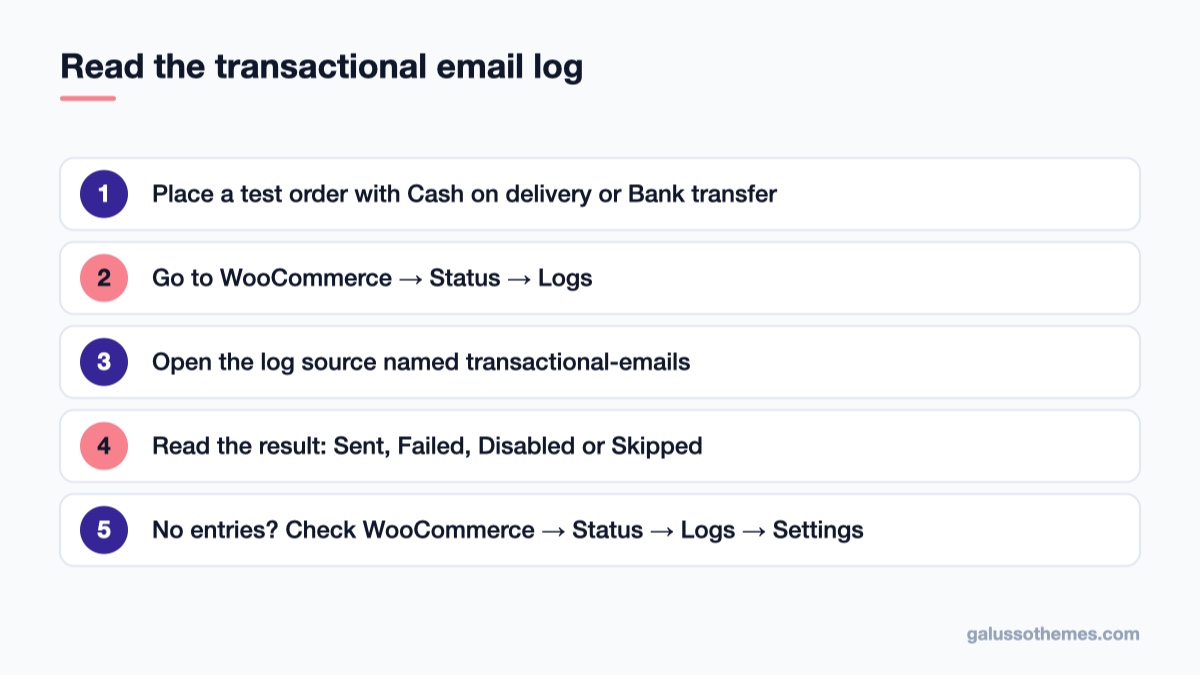
Place a test order on your store (a cheap product with a manual method such as Cash on delivery or Direct bank transfer works well).
Go to WooCommerce → Status → Logs.
Open the log source named transactional-emails.
Find the entries for your test order and read the result.
Each attempt is recorded with one of four results:
Result
Log level
What it means
Where to look next
Sent
INFO
WooCommerce handed the email to wp_mail() and the mail system accepted it.
Delivery: From address, SMTP, spam folder (Checks 5 and 6)
Failed
WARNING
The mail system returned an error, often with a reason.
Server mail function or SMTP settings (Check 6)
Disabled
NOTICE
That email type is turned off.
Enable it (Check 2)
Skipped
NOTICE
A required condition was missing, such as a recipient.
Recipient fields and order data (Check 2)
Sent and failed attempts are also added as private notes on the order, so you can open any order and see what happened to its emails. For privacy, the log doesn’t store raw customer addresses: recipients appear as the matching WordPress username or as guest, and addresses inside failure messages are hidden.
If the transactional-emails source doesn’t appear at all, open WooCommerce → Status → Logs → Settings and check that logging is enabled and that the level threshold isn’t hiding INFO and NOTICE entries. If you’re on an older WooCommerce version, update first; our WooCommerce 11.0 update guide covers how to do that safely.
Note that WordPress emails such as admin notifications and password resets sent by WordPress itself usually don’t appear in this log. For those, use the logger in the next check.
Check 4: Catch wp_mail() errors yourself
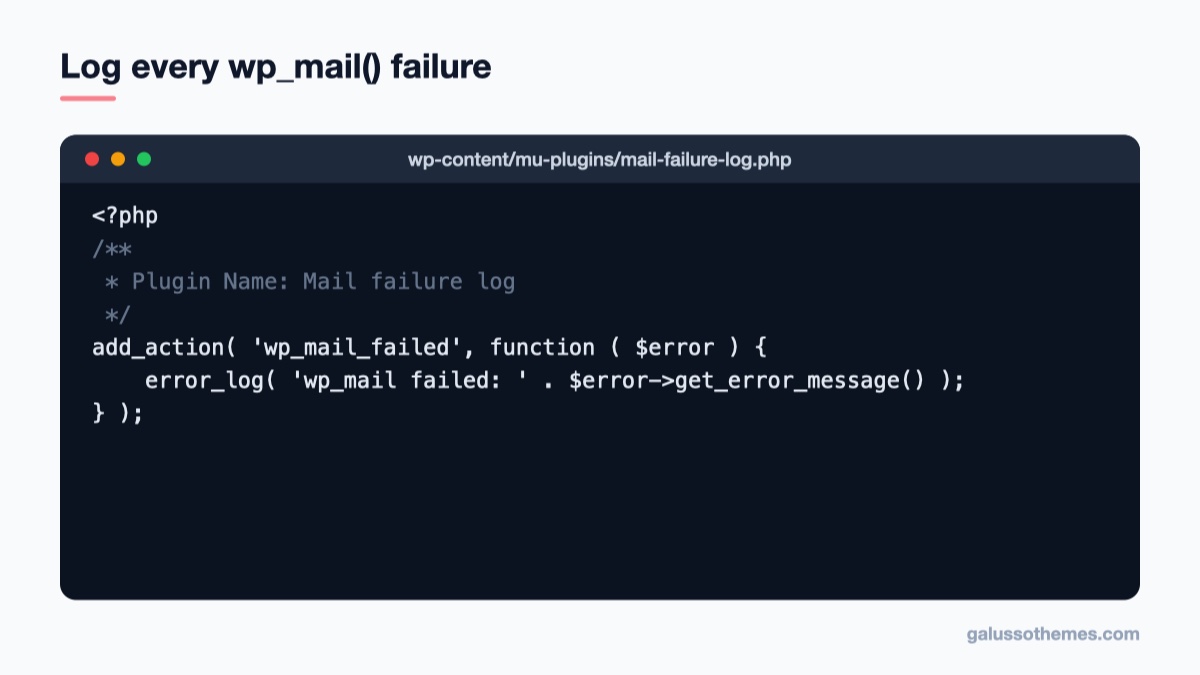
This small must-use plugin writes PHPMailer's error message to wp-content/debug.log.
When an email shows as Failed, or you need to debug emails that WooCommerce’s log doesn’t cover, WordPress can tell you exactly why wp_mail() failed. Every failed call fires the wp_mail_failed action and passes a WP_Error object holding PHPMailer’s error message.
First, turn on the WordPress debug log in wp-config.php, above the line that says “That’s all, stop editing!”:
Then create a small must-use plugin so the logger keeps working even if you switch themes. Create the file wp-content/mu-plugins/mail-failure-log.php (create the mu-plugins folder if it doesn’t exist) with this content:
Place another test order, then open wp-content/debug.log over SFTP or your host’s file manager. Typical messages tell you a lot:
“Could not instantiate mail function.” The server’s PHP mail function is disabled or broken. Many hosts block it on purpose. The fix is SMTP (Check 6).
“SMTP Error: Could not authenticate.” You already use SMTP, but the username, password or app password is wrong or has expired.
“SMTP connect() failed.” The host blocks outgoing SMTP ports, or the server name, port or encryption setting is wrong. Ask your host which ports are open, or use an SMTP plugin that sends through the provider’s API instead.
When you’re done, set WP_DEBUG back to false and delete the mu-plugin. Debug logs can grow large and shouldn’t stay switched on in production.
Check 5: Fix the “From” address
If the log says Sent but the customer never sees the email, the message was accepted by your server and lost or filtered on the way. The most common cause is the From address.
Go to WooCommerce → Settings → Emails and look at the “From” address under Email sender options. If it’s a Gmail, Yahoo, Outlook.com or other free mailbox address, change it to an address on your own domain, such as [email protected]. Your web server isn’t allowed to send mail on behalf of gmail.com, so receiving servers treat such messages as forged and often drop them or send them to spam. WooCommerce’s own documentation lists this as a key delivery fix.
Make sure the address really exists (or at least that replies to it go somewhere), because customers will reply to order emails.
Check 6: Send through SMTP and authenticate your domain
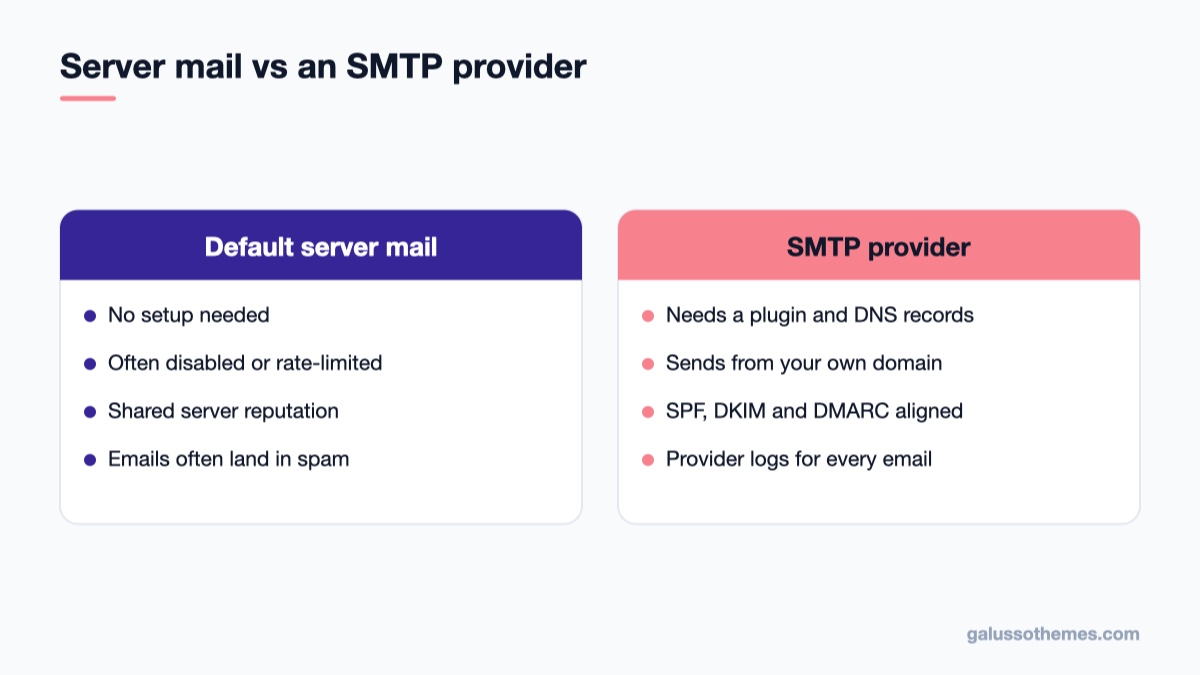
Sending through an authenticated SMTP provider is the most reliable fix for lost shop emails.
By default, WordPress sends mail through the web server itself. That is the least reliable way to send shop emails: shared servers often have poor sending reputations, low hourly limits, or a disabled mail function. WooCommerce recommends a dedicated SMTP provider instead.
Set up an SMTP plugin
Choose a sending service. This can be your email host (Google Workspace, Microsoft 365, Zoho) or a transactional service built for app email.
Install an SMTP plugin from Plugins → Add New Plugin. It replaces the default PHP mail transport inside wp_mail(), so WooCommerce emails go through it automatically with no changes to WooCommerce. We compared several options in our list of WordPress SMTP plugins.
Enter the provider’s details (or connect through its API) and use the plugin’s test email feature to confirm a message arrives.
Place another test order and confirm the customer and admin emails both arrive.
Authenticate the sending domain
Your sending service will ask you to add DNS records for your domain. Don’t skip this step:
SPF lists the servers allowed to send mail for your domain.
DKIM adds a cryptographic signature that proves the message wasn’t changed and really came from your domain.
DMARC tells receiving servers what to do with mail that fails those checks, and sends you reports.
Large mailbox providers now expect authenticated mail. Google’s email sender guidelines, for example, require SPF or DKIM for everyone who sends to Gmail accounts, and SPF, DKIM and DMARC for bulk senders. Add exactly the records your provider gives you. If your domain already has an SPF record, add the new provider to it rather than creating a second SPF record, because a domain should have only one.
Check 7: Rule out a plugin or theme conflict
If the email is enabled, the order status changes correctly, and the log still shows nothing for your test order, something is interfering before WooCommerce gets to send. Typical suspects are email customizer plugins, checkout add-ons, caching or optimization plugins and old custom snippets in a theme’s functions.php.
Look for fatal errors first: in WooCommerce → Status → Logs, open the fatal-errors source if it exists, and check wp-content/debug.log.
Install the official Health Check & Troubleshooting plugin. Its troubleshooting mode disables plugins and switches to a default theme for your logged-in session only, so customers keep seeing the normal site.
In troubleshooting mode, enable WooCommerce (and your SMTP plugin, if you added one) and place a test order.
If the email works now, re-enable your other plugins one by one, testing after each, until it breaks again. The last plugin you enabled is the cause.
Then update that plugin, check its settings, or contact its developer with what you found. If the cause turns out to be a snippet in your theme, move it to a child theme or a code snippets plugin once fixed, so a theme update doesn’t bring the problem back.
Common mistakes
Testing with the same address as the From address. Some mail providers hide or group messages you “sent to yourself”. Test with a separate mailbox, ideally one at Gmail and one at Outlook.com.
Forgetting the spam folder. A “Sent” result plus no inbox delivery often means the email is sitting in spam. That is a deliverability problem: fix the From address and DNS records rather than WooCommerce settings.
Installing two SMTP plugins. Two plugins both trying to configure PHPMailer can override each other. Keep one.
Treating Pending payment as an email bug. No customer email is expected for unpaid orders. Fix the payment gateway instead.
Leaving debug logging on. Turn WP_DEBUG off and remove temporary mu-plugins when you’re done.
Keep your shop emails reliable
A theme doesn’t send your emails, but a clean, well-coded one gives you fewer conflicts to chase. If you’re building or rebuilding a store, GT Organic is a WooCommerce-ready theme for food and grocery shops, and GT Watches suits product-focused stores with a premium catalog. Both work with the standard WooCommerce email templates, so the checks in this guide apply unchanged.
Wrap-up: your next step
Most missing WooCommerce emails come down to one of three things: the order never reached a status that sends an email, the email was disabled or had the wrong recipient, or the message was sent but lost in delivery. The transactional email log tells you which in a couple of minutes, so start there.
Do this today: place a test order, open WooCommerce → Status → Logs → transactional-emails, and read the result. If it says Sent, move your From address to your own domain and set up SMTP with SPF, DKIM and DMARC. If it says Failed, add the wp_mail_failed logger and fix the error it reports. Then repeat the test order once a month, or after every major plugin update, so you find out about email problems before your customers do.
Hello everyone! We’re Galussothemes content team, we love to write new blogs for WordPress Joomla! and other tech niches everyday. We’re talented young people who hold a strong passion for website development, designing, and marketing. Feel free to leave your comment if you have any issues or questions with our blogs.
Interesting with this topic? You also interest with this articles: