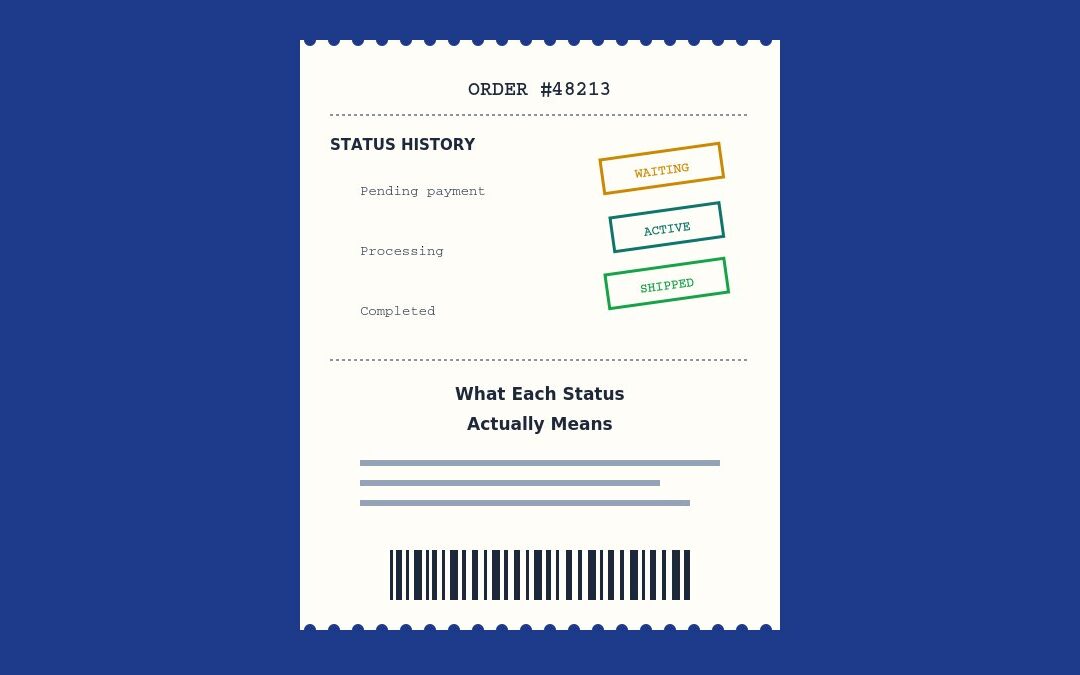
An order comes in and sits at “Processing.” Another shows “On Hold” and you’re not sure if the customer’s payment actually went through. A third has been “Pending Payment” for three days and you’re wondering whether to just mark it “Completed” and move on. If you’ve run a WooCommerce store for any length of time, you’ve hit all three of these moments — and the honest truth is that WooCommerce’s own interface doesn’t explain what’s actually happening behind each status nearly as clearly as it should.
This gap in explanation isn’t a minor documentation oversight — order status genuinely controls real operational behavior behind the scenes: whether stock is reserved, whether a customer email fires, whether an integration re-syncs data, whether your sales reports count the order as revenue yet. Treating status as a purely cosmetic label you can change freely, rather than something that actually drives these downstream behaviors, is where most of the real mistakes covered later in this guide come from.
Here’s what every default WooCommerce order status actually controls, what triggers each one automatically, and specifically why manually changing a status yourself can quietly cause more problems than it solves.
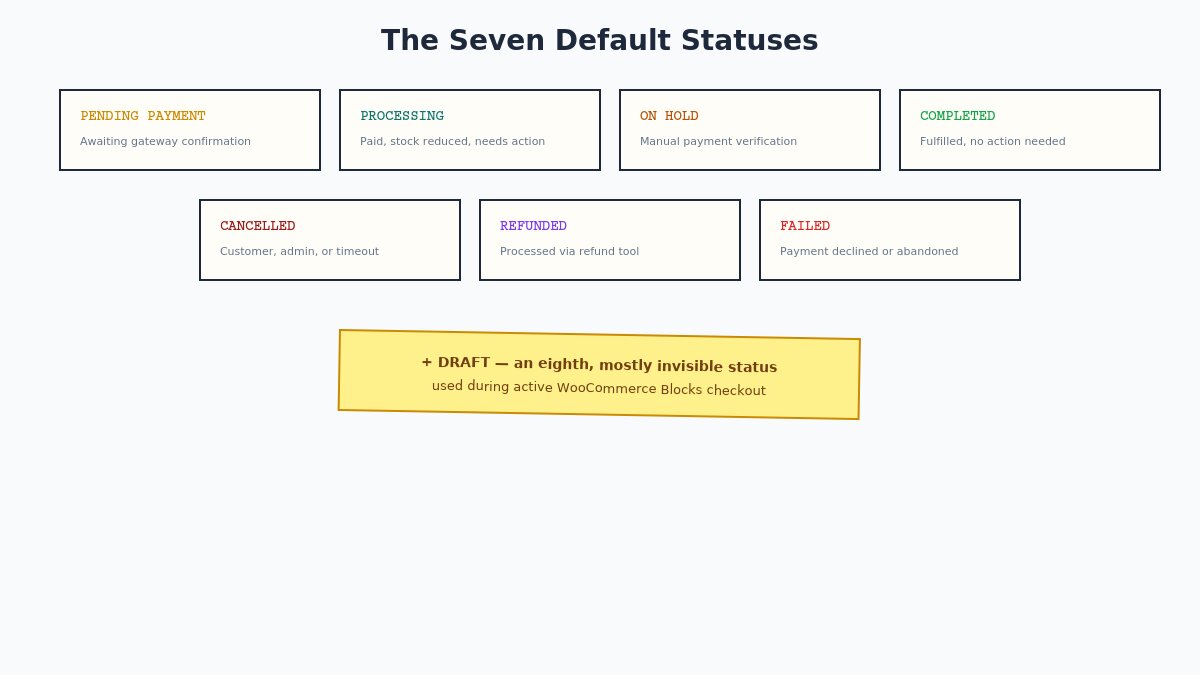
The Seven Default Statuses
The seven default WooCommerce order statuses overview
Every WooCommerce order moves through some subset of these seven built-in statuses, though not every order passes through every one:
Pending payment — the order has been created, but WooCommerce hasn’t yet received confirmation that payment was successful.
Processing — payment has been received (or, for offline payment methods, the order requires manual processing), and stock has been reduced. This is the “we need to act on this” status.
On hold — payment is awaited or requires manual verification, commonly used with offline payment methods like bank transfer or check.
Completed — the order has been fulfilled: shipped, delivered, or otherwise finished. No further action is expected.
Cancelled — the order was cancelled, either by the customer, the store admin, or automatically after a configured timeout.
Refunded — the order was refunded, fully or partially, after payment had been received.
Failed — the payment attempt failed or was declined, or the order was abandoned during a failed payment process.
There’s technically an eighth, less visible status — Draft (sometimes shown as “Checkout Draft”) — used internally by WooCommerce Blocks for orders that exist temporarily while a customer is actively in the checkout process but hasn’t completed it. Most store owners never interact with this one directly, but it’s worth knowing it exists if you ever see an unusually high count of orders that don’t fit the other seven categories.
What Actually Triggers Each Status
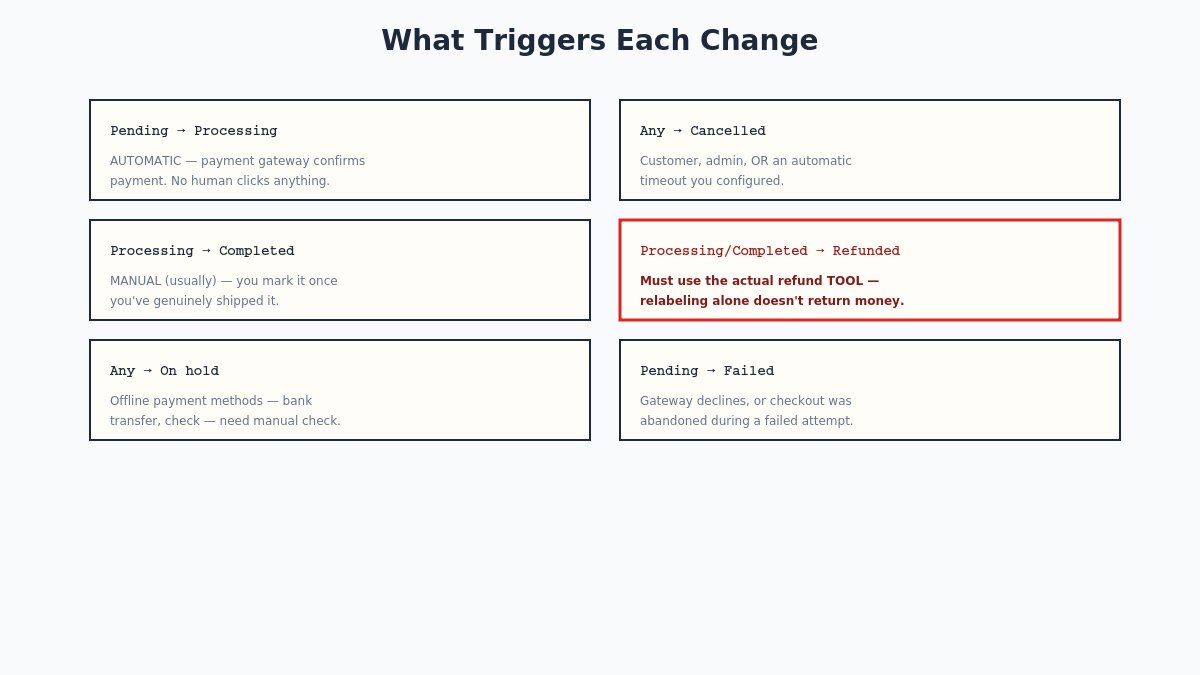
What triggers each WooCommerce order status change
Understanding what causes a status change — rather than just what each one means in isolation — is where this actually becomes useful for day-to-day store management:
Pending payment → Processing (or Completed) happens automatically when your payment gateway confirms a successful transaction. This is the gateway talking directly to WooCommerce, not a person clicking anything. If an order is stuck on Pending payment for an unusually long time, it almost always means the payment gateway never received or never sent back a confirmation — the customer’s card may have failed silently, or there’s a configuration issue with your gateway’s webhook or callback URL.
Processing → Completed is, for most stores selling physical products, the one status change that should be a deliberate human action — marking an order Completed once it’s actually shipped. Some digital-goods stores configure automatic completion instead, since there’s no physical fulfillment step to wait for.
Anything → On hold typically happens with offline payment methods (bank transfer, check payment) where WooCommerce has no automatic way to confirm the money actually arrived — a human needs to check the bank account or mailbox and manually move the order forward once payment is confirmed.
Anything → Cancelled can happen from a customer explicitly cancelling before payment, an admin cancelling manually, or — commonly overlooked — an automatic timeout you’ve configured (Pending payment orders left unpaid for a set number of minutes can be auto-cancelled to free up reserved stock).
Processing or Completed → Refunded happens when a refund is processed through WooCommerce’s own refund tool, which is worth using specifically because it also handles the accounting and, depending on configuration, communicates with your payment gateway to actually return the funds — a status manually changed to “Refunded” without using the actual refund tool doesn’t refund the customer’s money, it just relabels the order while the customer’s card was never actually credited.
The Part Most Store Owners Miss: Stock Implications
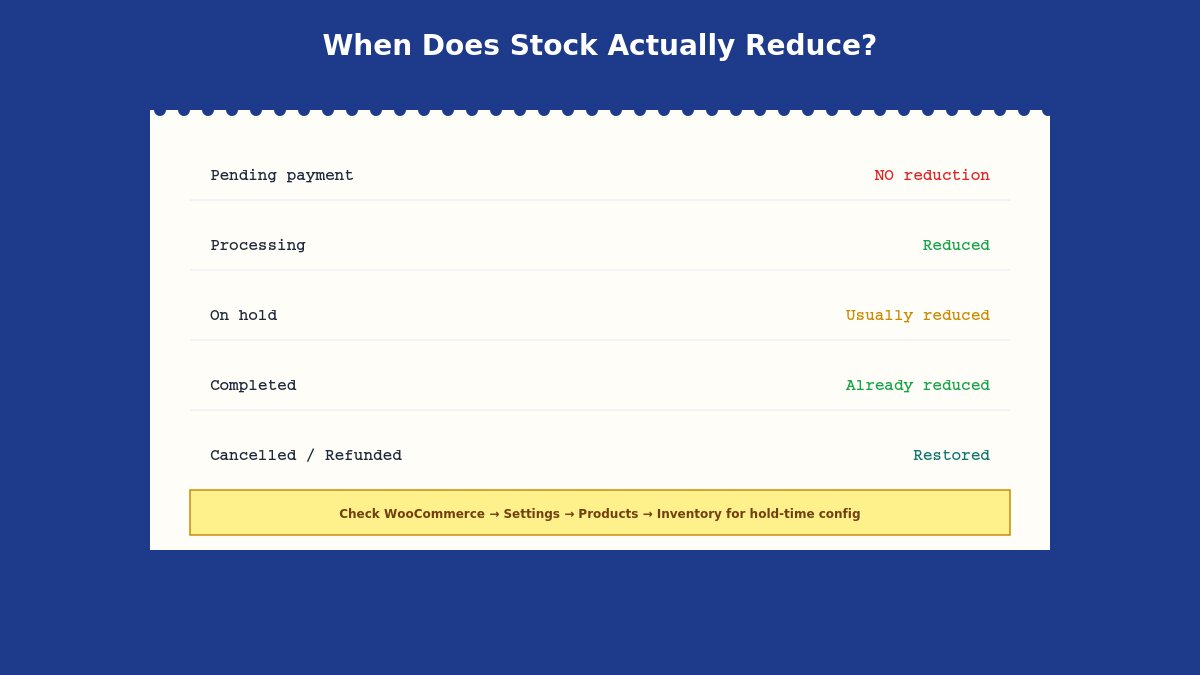
How WooCommerce order status affects stock levels
This is the detail that causes the most real operational confusion, because it isn’t obvious from the interface alone: stock reduction timing depends on your specific settings, not on a single universal rule across every store.
By default, WooCommerce reduces stock when an order reaches Processing or Completed — not at Pending payment. This means a cart full of Pending payment orders (customers who started checkout but never completed payment) doesn’t lock up your inventory indefinitely, which is generally the behavior you want. However, WooCommerce also has a setting (under WooCommerce → Settings → Products → Inventory) controlling how long stock is “held” for an unpaid Pending order before it’s released back to available inventory — relevant if you sell low-stock or high-demand items where multiple simultaneous checkout attempts for the last unit are a real scenario.
On hold orders, since they’re often awaiting offline payment confirmation, do reduce stock in most default configurations — the logic being that a bank transfer order is a real, if not-yet-confirmed, sale that shouldn’t be sold to someone else in the meantime. If you manually cancel an On hold order after stock has already been reduced, confirm that the stock is actually restored — this is generally automatic, but worth spot-checking on any store where inventory accuracy genuinely matters.
When You Should Never Manually Change a Status
When not to manually change a WooCommerce order status
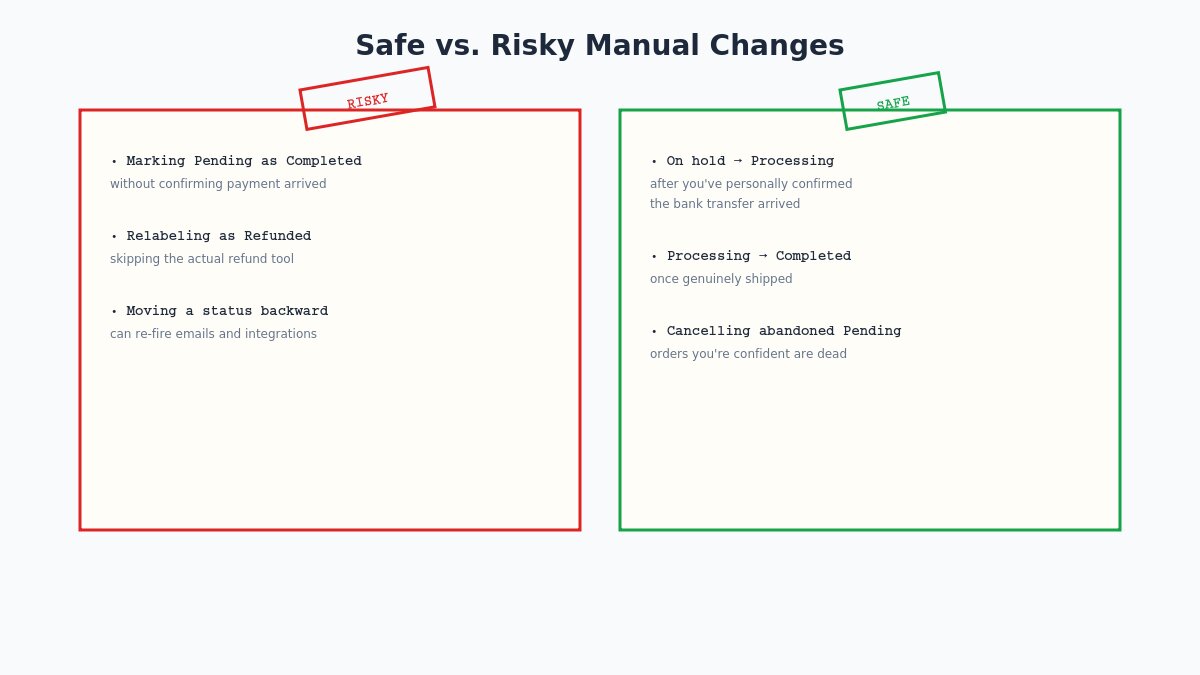
The single most common mistake we see: an order is stuck, looks wrong, or simply looks “done” to a store owner glancing at it, and the instinct is to just click into the order and manually change the status to whatever seems correct. This is safe in some cases and genuinely risky in others:
Marking a Pending payment order as Completed manually, without confirming payment actually arrived, gives the customer their order without confirmed payment — a real revenue risk if you do this reflexively rather than checking your payment gateway’s own transaction log first.
Marking an order Refunded without using WooCommerce’s actual refund process doesn’t return the customer’s money — it just changes the label on the order while the customer is still charged, which reliably produces a support ticket or a chargeback once they notice.
Manually moving an order backward (Completed back to Processing, for instance) can, depending on your specific plugin combination, trigger unintended side effects — some automation and integration plugins listen for status-change events and may re-fire actions (like re-sending a “processing” notification email) that don’t make sense for an order that was already fulfilled.
Safe manual changes, by contrast: moving an On hold order to Processing once you’ve personally confirmed a bank transfer arrived; marking Processing orders Completed once you’ve genuinely shipped them; cancelling a Pending payment order you’re confident was abandoned. These are exactly the judgment calls the status system is designed for a human to make — the risk is specifically in changes that bypass or contradict what the status is supposed to represent (confirmed payment, actual refund, genuine fulfillment) rather than accurately reflecting it after the fact.
Beyond the Defaults: Custom Order Statuses
Custom WooCommerce order statuses from plugins
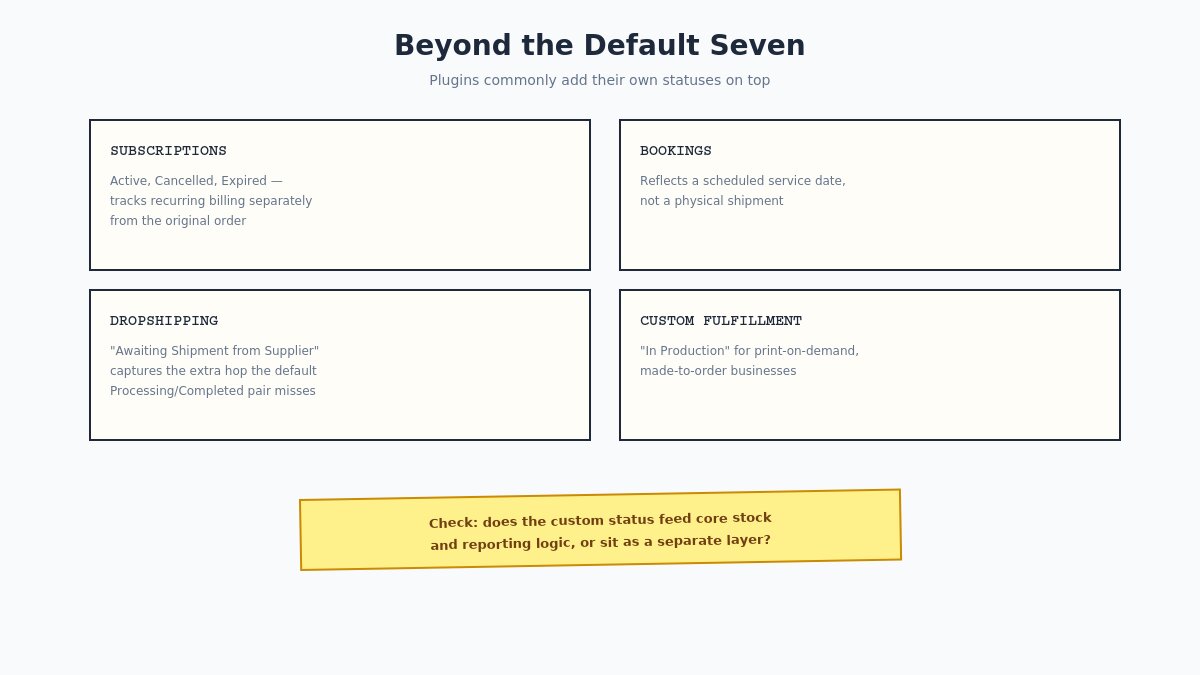
The seven built-in statuses cover most stores adequately, but a meaningful share of WooCommerce sites run plugins that add their own custom statuses on top, and it’s worth knowing this extension pattern exists even if you’re not currently using it:
Subscription plugins commonly add statuses like “Active,” “On Hold” (subscription-specific, distinct from the order-level On hold), “Cancelled,” and “Expired” to track recurring billing separately from the original order’s fulfillment status.
Dropshipping and multi-vendor plugins often add statuses reflecting a supplier or vendor’s fulfillment stage — “Awaiting Shipment from Supplier,” for instance — since the standard Processing/Completed pair doesn’t capture the extra hop through a third party.
Booking and appointment plugins sometimes add statuses reflecting a scheduled service date rather than a physical shipment, since “Completed” for a future-dated appointment means something different than “Completed” for a shipped product.
Custom fulfillment workflows built for specific business needs — a print-on-demand shop, a made-to-order furniture business — often add intermediate statuses like “In Production” to give both the store owner and the customer more granular visibility than the default seven provide.
If you’re evaluating a plugin that adds custom statuses, it’s worth understanding whether those statuses integrate with WooCommerce’s core stock-reduction and reporting logic, or whether they exist as a separate tracking layer alongside it — this affects whether your sales reports and inventory counts account for orders sitting in a custom status correctly, or whether you need to cross-reference manually.
How Status Changes Interact With Emails and Automation
How WooCommerce order status changes trigger emails and automation
Every default status change can trigger a customer-facing email — WooCommerce ships with templates for order confirmation, processing, completed, refunded, and more, each tied to a specific status transition. This matters practically in two directions:
When troubleshooting a “customer says they never got an email” complaint, checking which status the order actually reached (and whether that status has an email template enabled at all — some are disabled by default) is more useful than assuming a generic email delivery problem.
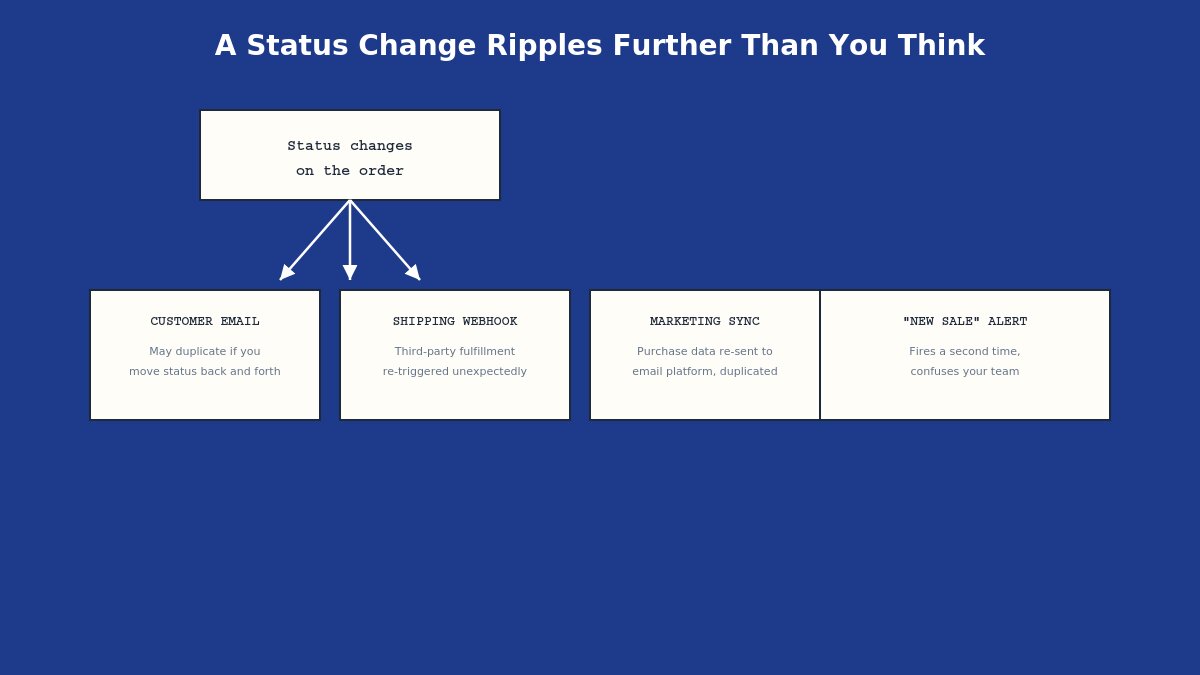
When manually changing a status, be aware you may be re-triggering an email the customer has already received once. Manually moving an order from Completed back to Processing and then back to Completed again, for instance, can result in the customer receiving a duplicate “your order is complete” email, which reads as confusing or like an error on your end even though nothing is actually wrong with their order.
Beyond built-in emails, many stores run automation tools — Zapier-style integrations, custom webhooks, marketing platforms syncing purchase data — that listen for WooCommerce status-change events specifically. A manual status change you make for convenience can ripple further than just the order screen: it might re-trigger a fulfillment webhook to a third-party shipping service, re-sync purchase data to an email marketing platform, or fire a “new sale” notification a second time. Before manually changing a status on a store with meaningful automation layered on top, it’s worth pausing to consider what else might be listening for that specific change, not just what you can see on the order screen itself.
A practical WooCommerce order lifecycle walkthrough
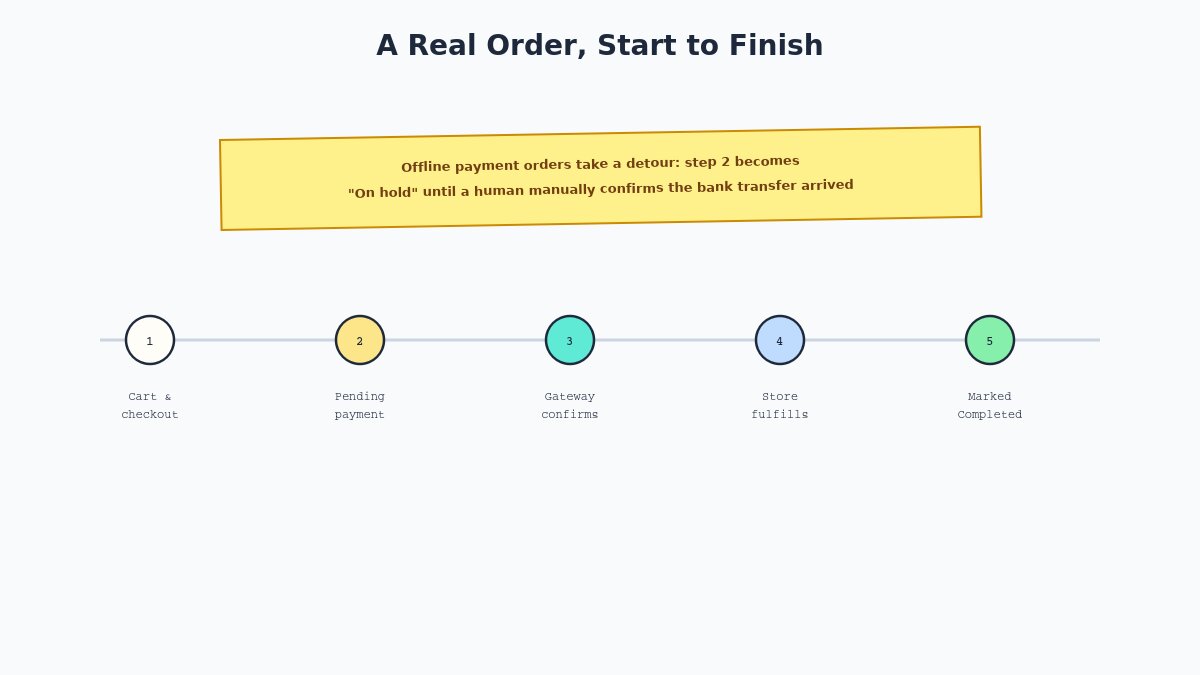
Walking through a realistic order end to end makes the abstract status list concrete:
Customer adds items to cart and begins checkout. A Draft/Checkout Draft order may exist briefly at this stage in stores using WooCommerce Blocks checkout.
Customer submits payment. The order becomes Pending payment while WooCommerce waits for the gateway’s response.
Gateway confirms successful payment. The order automatically moves to Processing (for physical goods) or Completed (common for digital goods with no shipping step), and stock reduces.
Store owner fulfills the order — packs and ships it, or for digital goods, this step may not exist at all.
Store owner marks the order Completed once fulfillment is genuinely done, either manually or automatically via a shipping plugin integration that updates status when a tracking number is generated.
If the customer requests a return, the store owner processes an actual refund through WooCommerce’s refund tool, which updates the status to Refunded and (depending on gateway) returns the actual funds.
Compare this against an offline-payment order: it starts Pending payment, moves to On hold while awaiting a bank transfer instead of Processing, and only advances to Processing once the store owner manually confirms the money arrived — the same underlying journey, with a manual verification step inserted specifically because there’s no automatic payment gateway confirmation available for that payment method.
Troubleshooting Orders Stuck in the Wrong Status
If you’re regularly seeing orders stuck somewhere they shouldn’t be, a few common root causes:
Orders stuck on Pending payment almost always point to a payment gateway configuration issue — check that your gateway’s webhook or callback URL is correctly configured and reachable, since this is the mechanism that actually moves the order forward, not anything WooCommerce does on its own.
Orders stuck on Processing indefinitely usually just means fulfillment genuinely hasn’t happened yet — worth checking whether this reflects a real operational backlog rather than a technical problem.
On hold orders piling up may indicate customers are choosing an offline payment method and then never actually completing the bank transfer or check — worth reviewing whether that payment option is causing more abandoned orders than it’s worth offering.
Unexpected Failed statuses are worth checking against your payment gateway’s own dashboard, since the specific decline reason (insufficient funds, fraud flag, expired card) lives on the gateway’s side, not in WooCommerce’s order notes.
Why Status Also Matters for Your Sales Reports
Beyond the operational effects covered above, order status directly determines what counts as revenue in WooCommerce’s own analytics and reports — a detail that matters if you’ve ever looked at your dashboard numbers and wondered why they don’t match what you expected. By default, WooCommerce’s reporting typically counts Processing, Completed, and sometimes On hold orders as actual sales, while excluding Pending payment, Cancelled, and Failed orders from revenue totals — which makes sense, since those latter statuses represent money that was never actually collected.
This has a practical implication worth understanding: if you’re in the habit of leaving orders sitting in Pending payment for extended periods rather than resolving them (moving genuinely paid orders forward, cancelling genuinely abandoned ones), your reports will understate your actual processed revenue during that window, even though the sales themselves eventually clear. Regularly working through a Pending payment queue — confirming which orders actually went through and which didn’t — keeps your reporting accurate in near-real-time rather than several days behind where it should be.
The same logic applies in reverse to Refunded orders: a refund correctly processed through WooCommerce’s tool automatically adjusts your reported revenue to reflect the return, which is one more reason using the actual refund tool matters beyond just correctly returning the customer’s money — it’s also what keeps your own sales numbers honest.
A Quick Reference You Can Actually Use
For a fast lookup rather than re-reading the full explanation each time, here’s the condensed version:
WooCommerce’s refund tool, not a manual label change
Failed
No
No
Payment gateway declines or fails
Keep this table as your actual working reference — the detailed explanations above are for understanding why each row is true, but this is the version worth glancing at in the middle of a busy order-processing session. Consider printing it or pinning it somewhere visible if you have staff handling order management who weren’t part of setting up the store originally — a shared, accurate mental model of what each status actually means prevents exactly the kind of well-intentioned but incorrect manual status change that causes the problems covered throughout this guide.
The One Rule Worth Remembering
If there’s a single principle to take from all of this, it’s that an order status should describe reality, not create it. Change a status manually only to accurately reflect something that’s actually already true — payment genuinely confirmed, an order genuinely shipped, a refund genuinely processed through the proper tool — never as a shortcut to make an order look finished when the underlying reality hasn’t actually caught up yet. Following that one rule prevents the overwhelming majority of the real problems — lost revenue, un-refunded customers, inventory drift — that come from treating order statuses as a cosmetic label instead of what they actually are.
None of this requires memorizing every trigger and side effect covered above, day to day. It requires one habit: before changing a status manually, ask whether you’re recording something that already happened, or trying to make something happen by relabeling it. The first is exactly what the status system is for. The second is where every mistake in this guide actually starts.
Hello everyone! We’re Galussothemes content team, we love to write new blogs for WordPress Joomla! and other tech niches everyday. We’re talented young people who hold a strong passion for website development, designing, and marketing. Feel free to leave your comment if you have any issues or questions with our blogs.
Interesting with this topic? You also interest with this articles: