You clicked “Update” on a plugin, the progress screen hung, and now every page of your site says “Briefly unavailable for scheduled maintenance. Check back in a minute.” A minute became ten, then an hour. Customers can’t reach your shop and you can’t reach the dashboard.
The fix is usually one hidden file, but deleting it without checking why the update stopped can leave you with a half-updated plugin and a new error. This guide explains how WordPress maintenance mode really works, how to get out of it safely through a file manager, FTP or WP-CLI, and what to check when the message keeps coming back.
How WordPress maintenance mode works
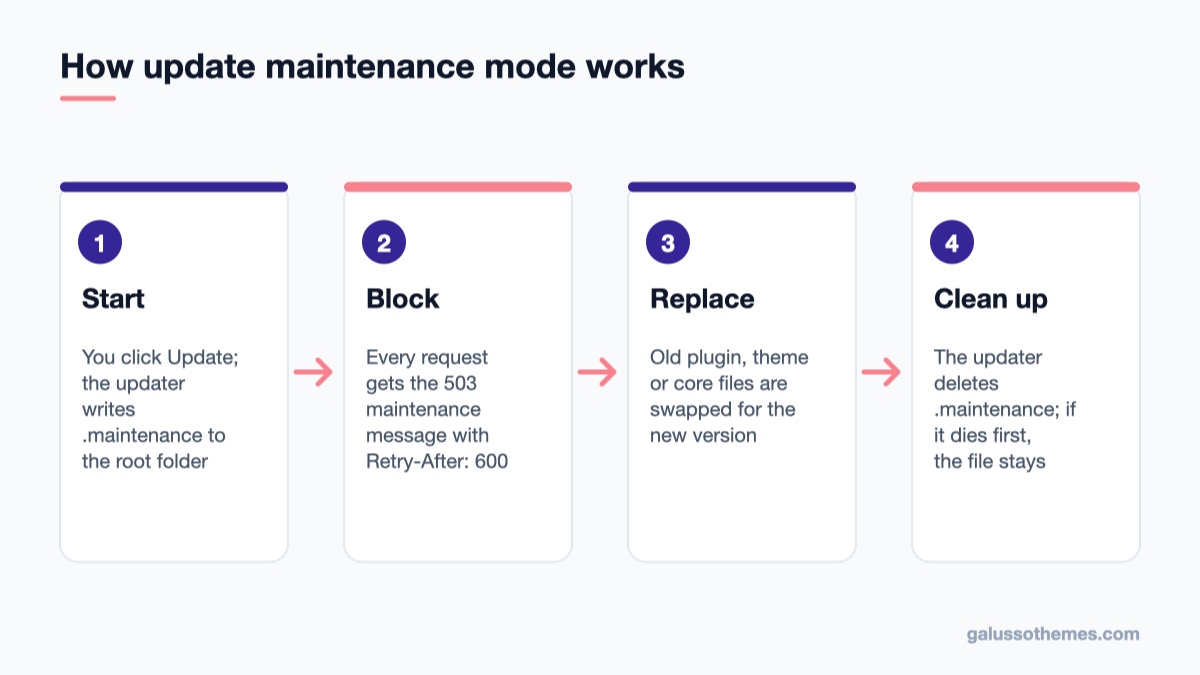
WordPress creates .maintenance before an update and deletes it when the update finishes.
WordPress has no “maintenance mode” switch in the dashboard. Core turns it on automatically while it updates WordPress itself, plugins, themes or translations. The steps are simple:
Before replacing files, the updater writes a small file named .maintenance into the WordPress root folder (the same folder as wp-config.php). It holds one line of PHP that stores the current time in a variable called $upgrading.
On every request, WordPress checks for that file early in loading. If it exists and is recent, WordPress stops and sends the maintenance message with an HTTP 503 Service Unavailable status and a Retry-After: 600 header, so search engines know the outage is temporary.
When the update finishes, the updater deletes .maintenance and the site comes back.
The file looks like this:
<?php $upgrading = 1792224000; ?>
The number is a Unix timestamp. If the update is interrupted (the browser tab closed, the PHP process hit its time or memory limit, the server ran out of disk space, or the connection dropped), nothing runs the clean-up step and the file stays behind.
The 10-minute safety net
Current WordPress has a built-in safeguard. The core function wp_is_maintenance_mode() reads $upgrading and treats maintenance as over when the timestamp is 10 minutes or older. You can read the source in the wp_is_maintenance_mode() reference. So on a standard install, a leftover .maintenance file stops blocking visitors by itself after about ten minutes.
That gives you a useful clue. If your site still shows the message long after ten minutes, the leftover file is often not the only cause. Something else may be serving or extending the maintenance screen, which the sections below help you track down.
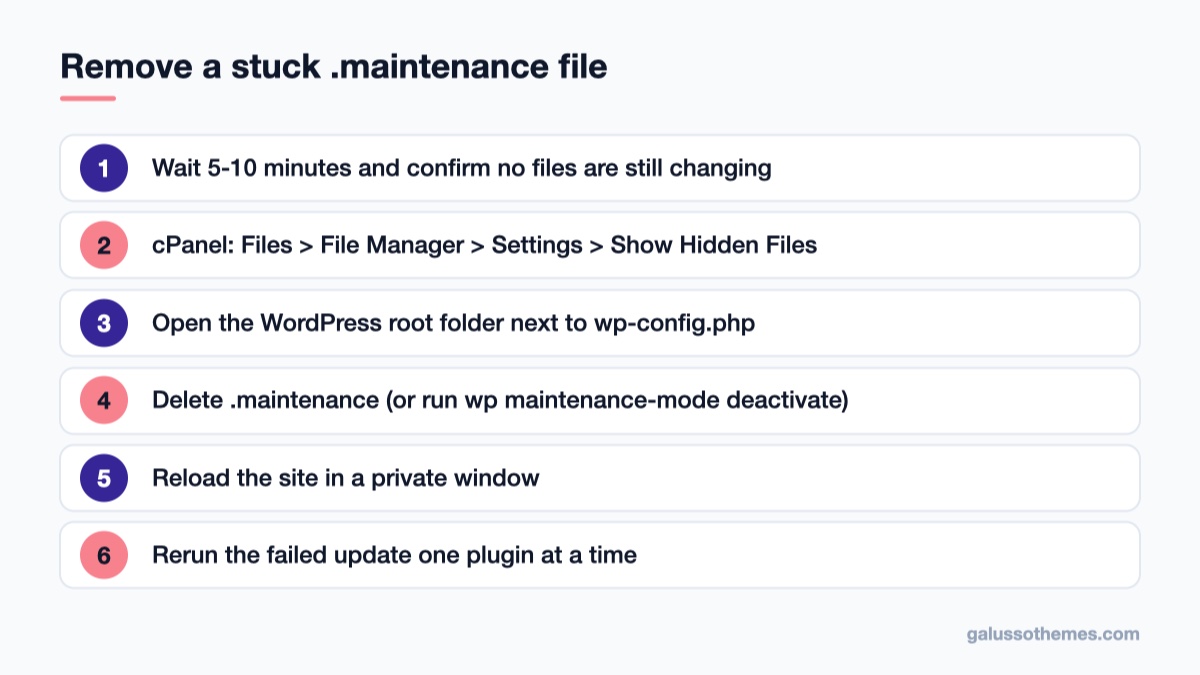
Step 1: wait a few minutes and check whether an update is still running
Before you delete anything, make sure the update has actually stopped. Large plugins such as WooCommerce, page builders or backup tools can take a while to download and unpack on slow shared hosting, and bulk updates of many plugins take longer still. Deleting .maintenance while files are still being copied can leave a plugin half old and half new.
If the update screen is still open in a tab, give it a few minutes.
If you have SSH access, check your hosting panel’s process list or resource monitor for a PHP process still busy on your site.
Open the file manager and look at the modified time of the files in wp-content/plugins/. If timestamps in the plugin folder are still changing, the update is still running.
If nothing has changed for five to ten minutes, the update has died. Move on to removing the file.
Step 2: delete the .maintenance file
Confirm the update stopped, delete the hidden file, then rerun the update.
The file name starts with a dot, which makes it a hidden file on Linux servers. Many file managers and FTP clients don’t show it until you turn on hidden files.
Using cPanel File Manager
Log in to cPanel and open Files → File Manager.
Click Settings in the top-right corner, tick Show Hidden Files (dotfiles) and save.
Open your WordPress root, usually public_html or the folder for your add-on domain. You are in the right place if you can see wp-config.php, wp-admin and wp-content.
Right-click .maintenance and choose Delete.
Other control panels (Plesk, DirectAdmin, custom host dashboards) have a similar “show hidden files” option in their file manager.
Using FTP or SFTP
Connect with your FTP client. In FileZilla, enable Server → Force showing hidden files.
Browse to the WordPress root folder.
Delete .maintenance.
Using WP-CLI over SSH
If your host gives you SSH and WP-CLI, there is a dedicated command group for this. From the WordPress root, run:
wp maintenance-mode status
wp maintenance-mode deactivate
The first command tells you whether maintenance mode is active; the second removes it. Both are documented in the WP-CLI maintenance-mode reference. For scripts, wp maintenance-mode is-active returns an exit code instead of a message.
Now reload your site in a private browser window. In most cases it is back.
Step 3: finish or repair the interrupted update
Removing .maintenance brings the site back, but the update that caused the problem never completed. Go to Dashboard → Updates and Plugins → Installed Plugins and check three things:
Is the plugin still listed? If the update died after the old version was removed but before the new one was in place, the plugin may be missing or deactivated. Reinstall it from Plugins → Add New Plugin or upload a fresh ZIP from the vendor.
Is the update still pending? Run it again, one plugin at a time, and keep the tab open until you see the success message.
Does the site work? Click through the homepage, a product page, the cart and checkout. A partly replaced plugin can cause PHP fatal errors that only show up on certain pages.
Since WordPress 6.3, manual plugin and theme updates move the old version into wp-content/upgrade-temp-backup/ first and restore it automatically if the update fails, as described in the Make WordPress Core announcement. That makes broken half-updates less common, but it can’t help when the PHP process is killed in the middle. If a plugin folder looks incomplete, delete that one folder and reinstall the plugin cleanly; its settings live in the database and are normally kept.
If you have WP-CLI, two commands quickly show whether any files differ from the official versions on WordPress.org:
Premium plugins that are not hosted on WordPress.org will be reported as unverifiable; that is expected and not an error.
If the site shows “There has been a critical error on this website” after you remove the file, that is a separate problem with its own fix. Check the recovery-mode email WordPress sends to the admin address, or rename the folder of the plugin you just updated to deactivate it. Our guide to the “Error Establishing a Database Connection” message covers another error that often turns up after a bad update on overloaded hosting.
Still stuck after deleting the file? Check these causes
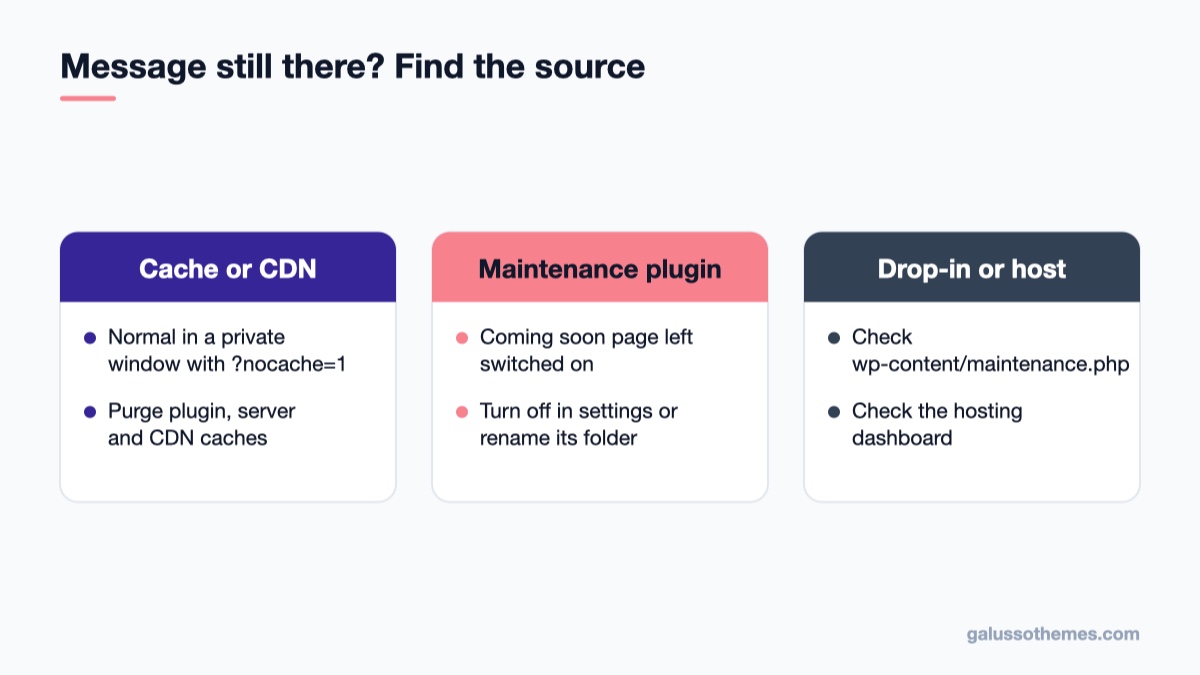
If the file is gone and the screen remains, it comes from a cache, a plugin or a drop-in.
If the message is still there after .maintenance is gone, or it came back after more than ten minutes, work through these in order.
1. A cached copy of the maintenance page
Page caching plugins, server caches (LiteSpeed, Varnish, NGINX FastCGI cache) and CDNs can keep serving the page they saw last. Test with a private window and with a query string such as ?nocache=1 added to the URL. If that version loads normally, purge the cache in your caching plugin, in your hosting panel and in your CDN dashboard.
2. A custom maintenance.php drop-in
WordPress lets you replace the default screen with your own file at wp-content/maintenance.php. When maintenance mode is active, core loads that file and stops, as the wp_maintenance() reference shows. The drop-in only appears while .maintenance is active, but if a theme, plugin or developer added one with a different message, you may be looking at it and not recognise it as WordPress maintenance mode. Check whether the file exists and what it says.
3. A maintenance or “coming soon” plugin
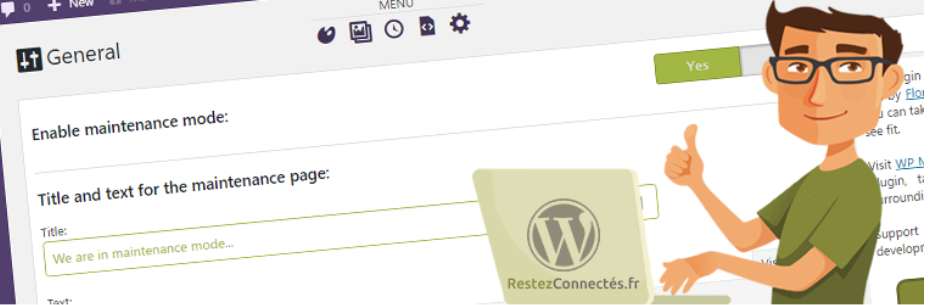
Plugins that show a “coming soon” or “under construction” page work separately from core’s .maintenance file. If one was switched on, or a staging copy was pushed live with it enabled, the site stays closed until you switch it off in that plugin’s settings. If you can’t reach the dashboard, rename the plugin’s folder in wp-content/plugins/ to deactivate it. Our roundup of WordPress maintenance mode plugins shows the most common ones so you know which names to look for.
4. A host-level maintenance page
Some managed hosts show their own maintenance or “site paused” page during server work or when an account is over its limits. If the HTML of the page doesn’t match WordPress’s message, check your hosting dashboard or contact support.
5. A timestamp in the future
If a script or a person wrote .maintenance with a wrong timestamp, or the server clock was wrong when it was created, the 10-minute rule may not kick in. Deleting the file solves this immediately.
How to stop it happening again
Updates get stuck because something kills the process before it finishes. Reduce the chances with these habits:
Update one plugin at a time on busy or low-resource hosting, especially large plugins such as WooCommerce. Bulk updates keep the site in maintenance mode longer and fail in more places.
Keep the update tab open until WordPress confirms the update finished. Closing it can stop the request on some server setups.
Check disk space in your hosting panel. Updates need room for the download, the unpacked files and, since 6.3, a temporary backup copy.
Raise PHP limits if updates often time out. Ask your host to raise max_execution_time and memory_limit.
Back up first and test major updates on a staging copy. Read release notes before big jumps, as we did in our WooCommerce 11.0 update guide.
Be careful with auto-updates for critical plugins. They run in the background through WP-Cron, so a failure can happen while nobody is watching. See our notes on WordPress auto-update plugins for ways to control which plugins update automatically.
Customizing the maintenance screen (optional)
Keep the 503 status and Retry-After header so search engines treat the outage as temporary.
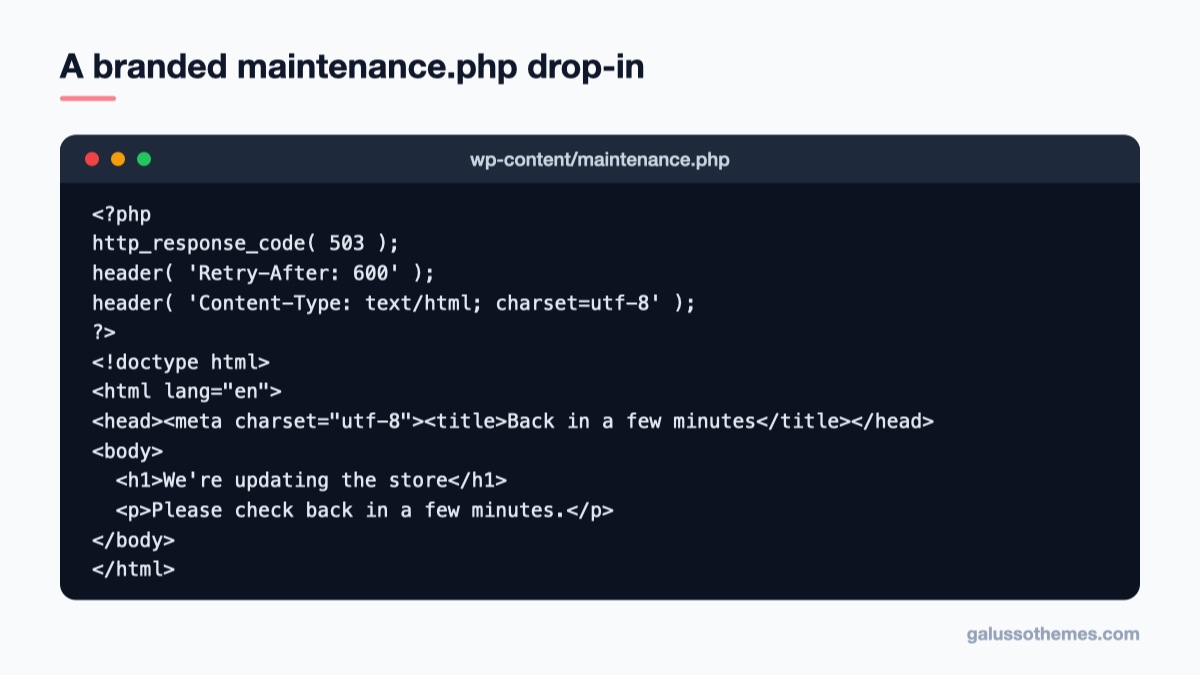
The default screen is plain white text. If your shop runs regular updates, you can replace it with a branded page so visitors who arrive during the update know the site will be back soon. Create wp-content/maintenance.php:
<?php
http_response_code( 503 );
header( 'Retry-After: 600' );
header( 'Content-Type: text/html; charset=utf-8' );
?>
<!doctype html>
<html lang="en">
<head><meta charset="utf-8"><title>Back in a few minutes</title></head>
<body>
  <h1>We're updating the store</h1>
  <p>Please check back in a few minutes.</p>
</body>
</html>
Two details matter. First, keep the 503 status and Retry-After header, because core’s default screen sends them and they tell search engines the outage is temporary. Without them your custom page would return 200 OK and could be indexed as real content. Second, keep the file self-contained: it runs before plugins and themes load, so WordPress functions and theme styles are not available. Use plain HTML and inline CSS only.
This file only appears while .maintenance is active, so it never blocks your site on its own. It changes what visitors see during updates, nothing more.
Common mistakes
Deleting files in the wrong folder..maintenance sits in the WordPress root next to wp-config.php, not inside wp-content. Don’t delete .htaccess or other dotfiles while you’re there.
Deleting the file mid-update. Always confirm the update has stopped first, or you may break the plugin being updated.
Stopping after the site loads. The failed update still needs to be completed or repaired, or the plugin may be outdated, missing or broken.
Forgetting the cache. If you only test in your normal browser, you may still see a cached copy and think the fix didn’t work.
A stable base for your shop
Updates are easier to manage on a well-coded theme that doesn’t bundle lots of extra plugins. If you run a WooCommerce store, GT Organic is a good fit for food and grocery shops, and Parfum suits beauty and fragrance stores. Both are built for WooCommerce, so you can keep your plugin list short. You can also browse our free WordPress themes.
Wrap-up
When WordPress is stuck in maintenance mode, confirm the update has stopped, delete the hidden .maintenance file from the root folder (or run wp maintenance-mode deactivate), then rerun or repair the update that failed. If the message survives that, purge your caches and look for a maintenance plugin, a custom maintenance.php drop-in or a host-level page. Your next step: check free disk space and PHP limits in your hosting panel today, so the next update finishes cleanly.
Hello everyone! We’re Galussothemes content team, we love to write new blogs for WordPress Joomla! and other tech niches everyday. We’re talented young people who hold a strong passion for website development, designing, and marketing. Feel free to leave your comment if you have any issues or questions with our blogs.
Interesting with this topic? You also interest with this articles: