You have 300 products in a spreadsheet from your supplier, or a price change that touches every item in the shop, and editing them one by one in the WordPress admin would take a full day. WooCommerce already includes a CSV importer and exporter that handles both jobs, with no extra plugin. This guide shows how to export a clean template, prepare the file, import new products, update existing ones in bulk, and fix the errors that usually stop an import halfway.
What the built-in WooCommerce CSV importer can do
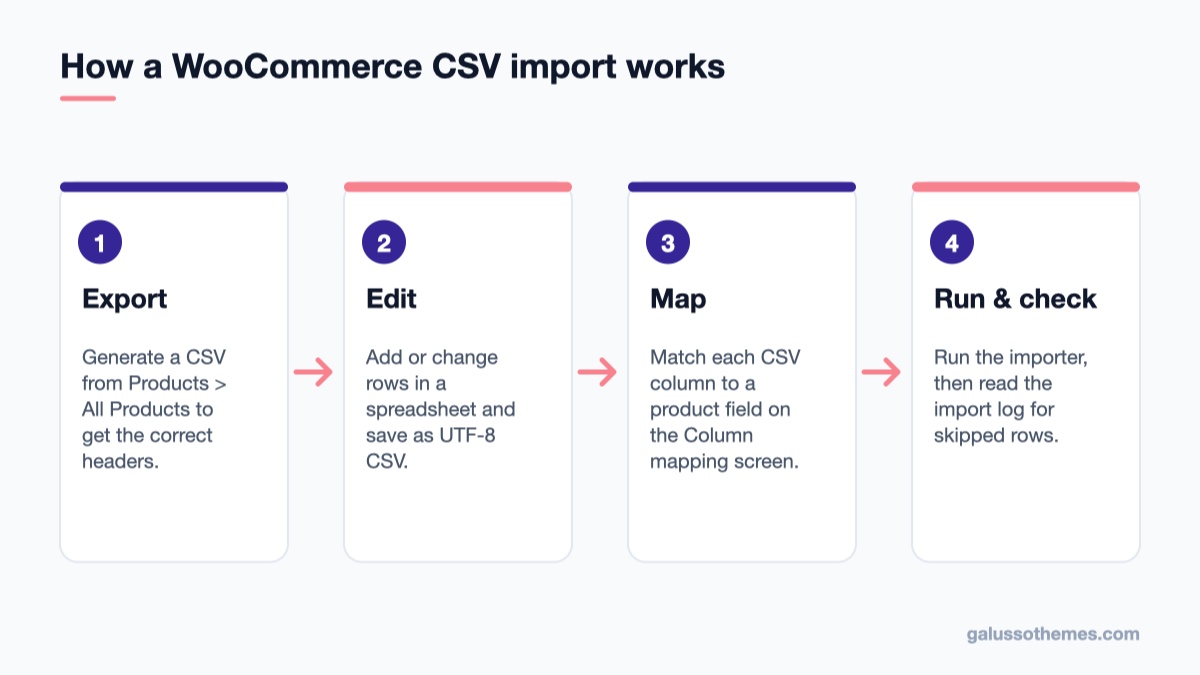
Every import moves through the same four stages, from export to the import log.
The importer and exporter have been part of WooCommerce core for years. You open them from Products → All Products, where the Import and Export buttons sit at the top of the list. With them you can:
Create new simple, variable, grouped and external products from a spreadsheet.
Update prices, stock, descriptions or categories on products you already have, matched by ID or SKU.
Export your whole catalog (or only selected products) as a backup or to move it to another store.
Pull product images from public URLs straight into the Media Library.
What it does not do: it cannot schedule imports, sync with a remote feed, or set image alt text. If you need those, the dedicated tools in our roundup of WooCommerce product import plugins are the next step. For most shops, though, the core tool is enough.
Step 1: Export a CSV to use as your template
The safest way to get the column headers right is to let WooCommerce write them for you. Even if you only have a few products, export them first and use that file as the template for new rows.
How to export products
Go to Products → All Products and click Export.
On the Export Products screen, leave Export all columns selected unless you only need a few fields.
Leave the product type and category filters empty to export everything, or narrow them down.
Tick Yes, export all custom meta only if you need data added by other plugins. Those columns start with meta:.
Click Generate CSV and wait for the download.
To export just a handful of products, tick them in the product list and use Export X selected, where X is the number you selected. This is a quick way to build a small file for testing before you touch the full catalog.
Keep the first export untouched in a safe folder. If an update import goes wrong, re-importing that file with Update existing products checked puts the old values back.
Step 2: Prepare the CSV file correctly
Most failed imports come from the file, not from WooCommerce. Open the exported CSV in Google Sheets, LibreOffice Calc or Excel and follow a few rules from the official Product CSV Import Schema.
Columns you will use most
Column
What to put in it
ID
Leave empty for new products. Filled IDs overwrite that existing product.
Type
simple, variable, grouped, external or variation.
SKU
A unique code per product and per variation.
Name
The product title.
Published
1 published, 0 private, -1 draft.
Regular price / Sale price
Plain numbers such as 24.99, no currency symbol.
Categories
Comma-separated; use > for child categories.
Images
Comma-separated image URLs; the first one becomes the featured image.
Stock / In stock?
A number enables stock management; 1 or 0 for in stock.
Formatting rules that prevent errors
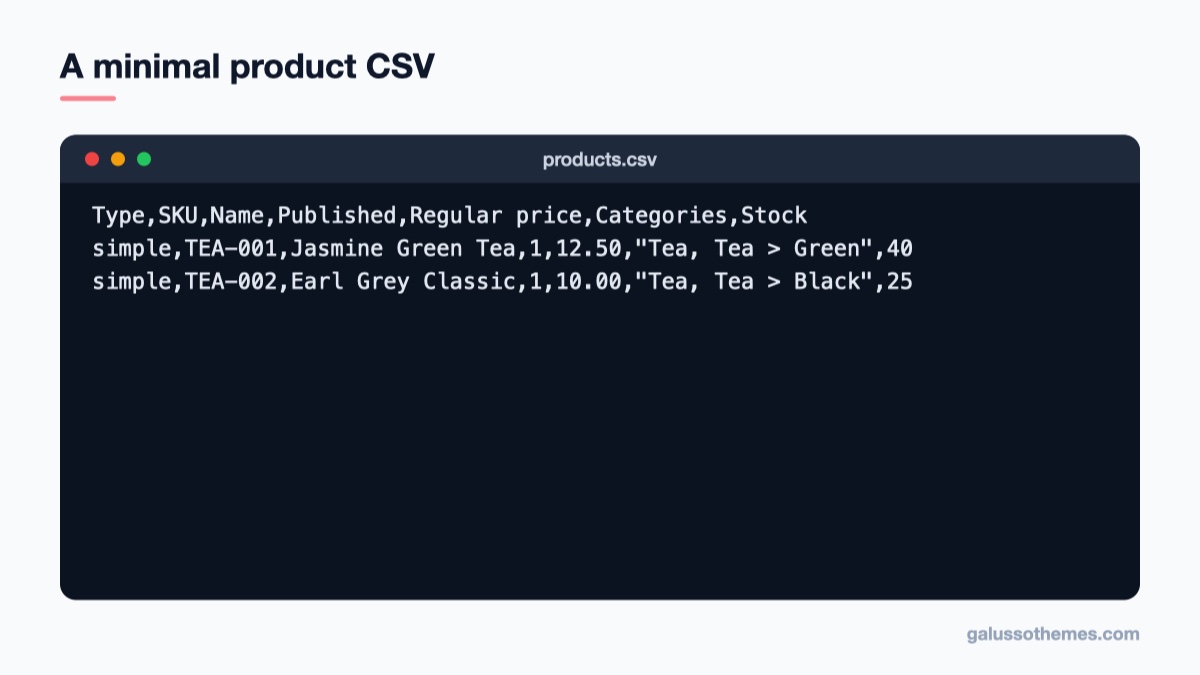
Two simple products with prices, nested categories and stock in one small file.
Save as UTF-8 CSV. In Excel choose “CSV UTF-8 (Comma delimited)”. Other encodings turn accented letters and symbols into garbage.
Use 1 and 0 for yes/no fields, not “yes”, “true” or “TRUE”.
Quote cells that contain commas. Spreadsheet apps do this automatically when you save as CSV, but hand-edited files often miss it.
Prefix IDs with id: when you reference another product, for example in the Parent column. SKUs need no prefix.
Stop Excel from mangling SKUs. Long numeric SKUs can be converted to scientific notation, and leading zeros are dropped. Format the SKU column as Text before you paste data into it.
A small, valid file for two new simple products looks like this:
Each row creates one published product, places it in the parent category “Tea” and a child category, and turns on stock management with the given quantity. Add an Images column with public image URLs when you want pictures imported in the same run.
Step 3: Import new products
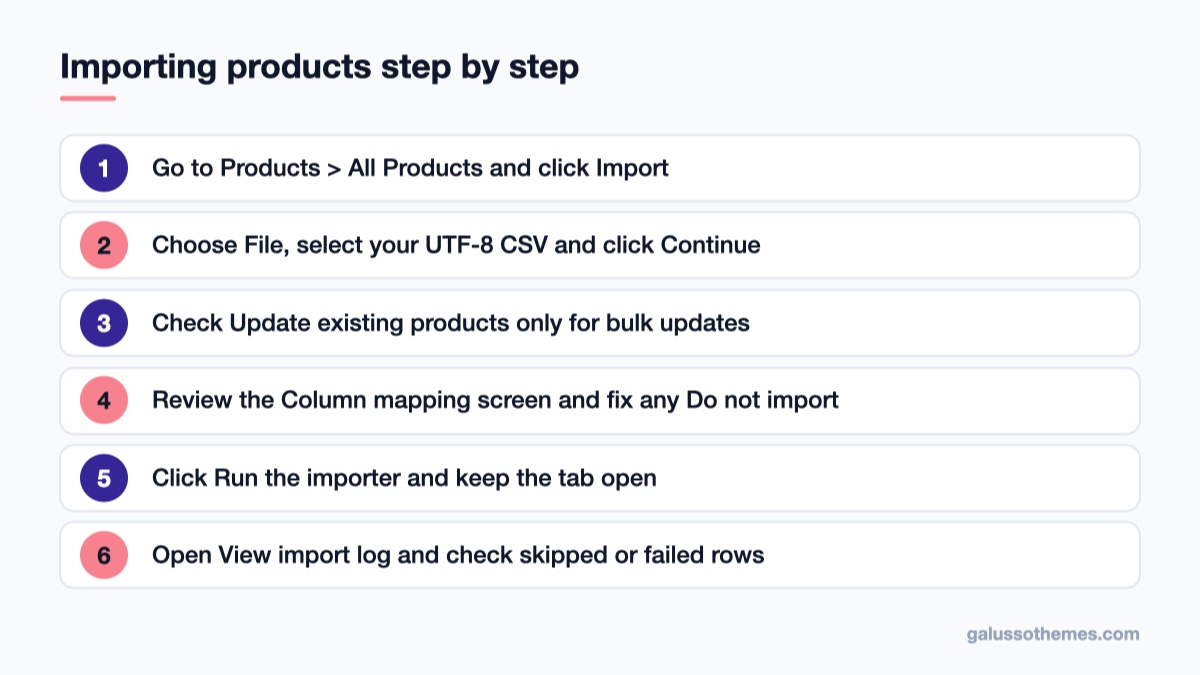
The core importer needs only five actions once the file is ready.
With the file ready, the import itself takes a few clicks. Test with five or ten rows first, check the result on the front end, then run the full file.
Upload the file
Go to Products → All Products and click Import.
Click Choose File and select your CSV. The screen shows the Maximum size your server accepts.
Leave Update existing products unchecked for a first import of new items.
Click Continue.
Check the column mapping
On the Column mapping screen, WooCommerce lists every column in your file next to a dropdown of product fields. Headers taken from an export are recognised automatically. For a supplier file with its own headers (for example “Retail Price” or “Product Title”), pick the matching field in each dropdown. Columns that WooCommerce does not recognise are set to Do not import, so look down the list for anything important left unmapped.
Run the importer
Click Run the importer and keep the tab open until the progress bar finishes. The final screen tells you how many products were imported, updated, skipped or failed, and a View import log link explains each skipped or failed row. Read that log every time; it is the fastest way to spot a mapping mistake before customers do.
Image downloads are the slowest part. If your file has hundreds of image URLs, split it into batches of 100-200 rows so one request does not time out.
Step 4: Update existing products in bulk
Bulk updates are where the CSV tool saves the most time: a price rise across the catalog, a new stock count after a stocktake, or fixing categories on old items.
Export the products you want to change (all of them, or a filtered set).
Delete every column you are not changing, but keep ID or SKU so WooCommerce can find each product. A short file is faster and cannot overwrite fields by accident.
Edit the values, for example the Regular price column.
Import the file with Update existing products checked.
WooCommerce matches each row by ID first, then SKU. Rows that match nothing are skipped rather than created as new products, so a typo in a SKU will show up as “skipped” in the log. According to the official importer documentation, WooCommerce 11.2 and later can also match on a mapped GTIN, UPC, EAN or ISBN column when both ID and SKU are blank, but only if you select that field on the mapping screen.
If you only need to put an item on sale for a weekend, the date fields on the product screen are simpler than an import; see how to schedule a sale in WooCommerce.
Step 5: Import variable products and variations
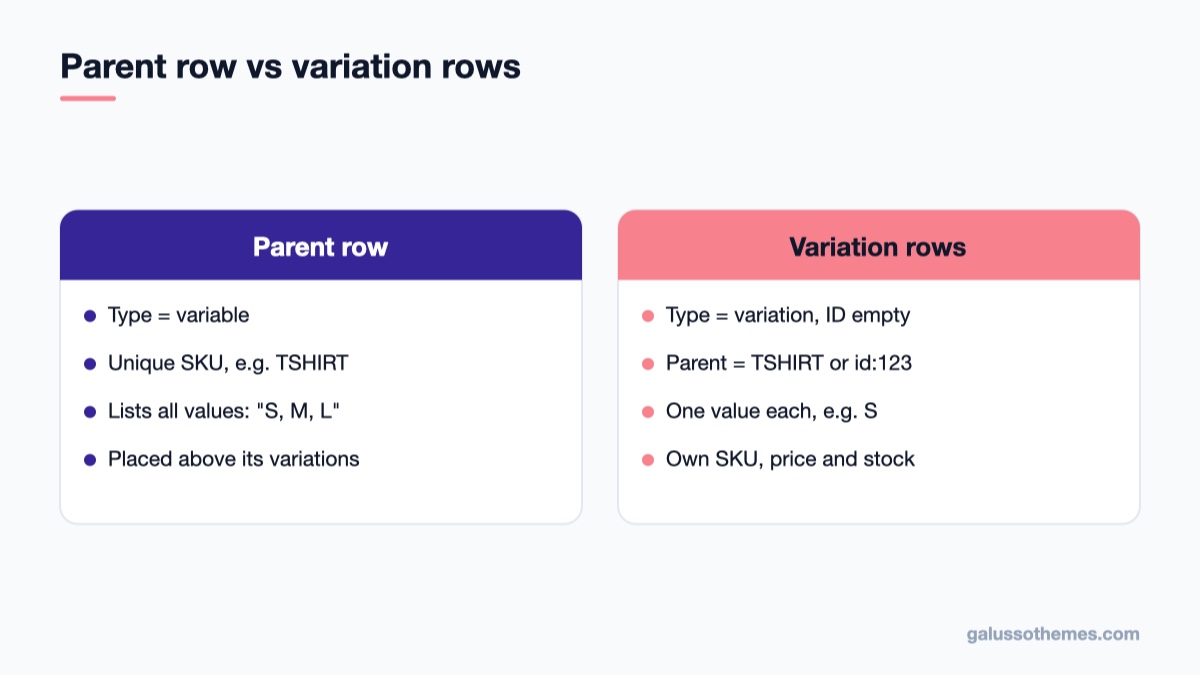
A variable product needs one parent row followed by one row per variation.
Variable products need a parent row and one row per variation. If you have not built one by hand yet, read how to create a variable product in WooCommerce first; the CSV fields map directly to what you see there.
The parent row
Type = variable, with its own unique SKU, for example TSHIRT.
Attribute 1 name = Size, and Attribute 1 value(s) lists every option: "S, M, L".
Set Attribute 1 visible and Attribute 1 global to 1 or 0.
The variation rows
Type = variation, ID left empty, and a unique SKU such as TSHIRT-S.
Parent = the parent’s SKU (TSHIRT) or id:123.
Attribute 1 name = Size and Attribute 1 value(s) = a single value, S, exactly as spelled on the parent.
Price and stock go on the variation rows, not the parent.
Keep the parent row above its variations. Since WooCommerce 11.1 a single import can create the parent and variations together when the parent comes first and Update existing products is checked. On older versions, or when you cannot guarantee row order, use two passes: import the parent rows with Update existing products checked, then import the variation rows with it unchecked. Afterwards, open one product and check its Variations tab before trusting the rest.
Type,SKU,Name,Parent,Regular price,Attribute 1 name,Attribute 1 value(s),Attribute 1 visible,Attribute 1 global
variable,TSHIRT,Logo T-Shirt,,,Size,"S, M, L",1,1
variation,TSHIRT-S,,TSHIRT,19.00,Size,S,1,1
variation,TSHIRT-M,,TSHIRT,19.00,Size,M,1,1
variation,TSHIRT-L,,TSHIRT,21.00,Size,L,1,1
Troubleshooting common CSV import problems
“Sorry, this file type is not permitted for security reasons.”
First confirm the file really ends in .csv and was not saved as .xlsx or .numbers. If it is a valid CSV and the upload still fails, upload the file to wp-content/uploads/ with SFTP or your host’s file manager, then on the import screen open Show advanced options and enter the file path on the server instead.
Products are skipped
Open the import log. The usual causes are a duplicate SKU or ID while Update existing products is unchecked, a SKU typo during an update, or a row whose Type differs from the product it matched. A simple product cannot be turned into a grouped one by changing one cell.
Images are missing
The URL must point directly at an image file that is publicly reachable. Links to Google Drive or Dropbox share pages, or to sites that block hotlinking, return a web page instead of an image. Upload those images to your Media Library first and use the Media Library URL.
The import stops part way
Large files with many images can hit PHP time or memory limits. Split the file into smaller batches, and if the Maximum size is too low, ask your host to raise the upload limit. Plugin conflicts can also break the run; if the problem started recently, our guide to fixing WordPress when an update gets stuck covers how to deactivate plugins safely.
Variations are not created
Check three things: each variation has its own SKU, the Parent value matches the parent exactly, and attribute names and values are spelled the same as on the parent row (“Medium” and “M” are different values).
Common mistakes to avoid
Importing straight into a live shop. Run large imports on a staging copy first, and take a database backup before any bulk update.
Leaving every column in an update file. Extra columns can overwrite descriptions or images you did not mean to touch.
Currency symbols in price cells. “$24.99” will not import as a price; use “24.99”.
Using Excel’s default CSV format. It is not always UTF-8; pick the UTF-8 option explicitly.
Pick a theme that shows a large catalog well
Once hundreds of products are in, the theme decides how easy they are to browse. GT Electrical is built for WooCommerce stores with many categories and technical products, GT Watches suits catalogs with lots of variations of one product line, and Parfum gives beauty and fragrance shops clean product grids that work with imported images.
Wrap-up
The WooCommerce CSV importer handles new catalogs, bulk price changes and variable products without extra plugins, as long as the file is UTF-8, the SKUs are unique and you read the import log after each run. Start today by exporting your current products as a backup, then try a ten-row test import on staging. When that works, run the full file in batches. Next, set up shipping zones and classes so your new products ship at the right rates.
Hello everyone! We’re Galussothemes content team, we love to write new blogs for WordPress Joomla! and other tech niches everyday. We’re talented young people who hold a strong passion for website development, designing, and marketing. Feel free to leave your comment if you have any issues or questions with our blogs.
Interesting with this topic? You also interest with this articles: