Selling both online and in person used to mean running two separate systems that didn’t talk to each other — a website for online orders, a completely separate cash register or POS terminal for the physical counter, and someone manually reconciling inventory between the two at the end of every day. For a WooCommerce store that also has a physical presence — a pop-up, a market stall, a small retail counter alongside the online shop — that disconnect is exactly the kind of operational friction a proper POS plugin exists to solve.
It’s also a category that’s easy to under-research, precisely because the stakes feel lower than picking your core ecommerce platform. Choosing WooCommerce or a theme feels like a foundational decision worth comparing carefully; adding a POS plugin on top can feel like a smaller, almost incidental choice by comparison. In practice, the wrong POS choice creates a specific, recurring cost — either in mismatched inventory, slow counter checkout during your busiest moments, or staff frustration with a clunky interface — that compounds every single day you’re open, which makes it worth exactly as much research attention as any other core piece of your store’s operation.
Here’s how the real options actually compare, and how to think about which one fits a small store rather than an enterprise chain.
Signs You Actually Need This
Not every WooCommerce store selling occasionally in person needs a dedicated POS integration right away. It’s worth being honest about where your business actually sits before adding another system to manage. A few concrete signals that you’ve crossed the threshold where manual reconciliation is costing you more than a POS integration would:
You’re spending more than fifteen or twenty minutes at the end of each selling day manually updating online stock counts to reflect in-person sales.
You’ve had a product oversell online because in-person inventory changes weren’t reflected in your website in time.
You’re tracking in-person sales in a separate spreadsheet or a different system entirely, and building your actual revenue picture means combining two disconnected sources by hand.
Your in-person selling has grown from occasional (a seasonal market or two) to regular (a standing weekly or daily presence), at which point the cost of not having unified inventory compounds every single selling day rather than just occasionally.
If none of these apply yet — you sell in person rarely, and manually adjusting a handful of stock counts afterward takes five minutes — a full POS integration may be more system than you currently need. It’s worth revisiting this list again once your in-person selling grows, rather than defaulting to the most feature-complete option now.
What a WooCommerce POS Plugin Actually Needs to Do
Before comparing specific tools, it’s worth being precise about what “POS integration” should mean for a WooCommerce store specifically, since the term gets used loosely:
Shared inventory in real time. A sale at the counter should reduce stock the same way an online sale does, without a manual sync step or an end-of-day reconciliation.
Offline resilience. A physical counter can’t go down because the internet blips — a good POS plugin queues transactions locally and syncs once connectivity returns.
Unified reporting. Sales data from both channels should roll up into one place, not two separate dashboards you have to manually combine.
Familiar checkout speed. Whatever the software looks like, it needs to process a transaction at the counter as fast as a dedicated retail POS terminal — a slow, clunky checkout is a real cost at a busy counter.
Payment flexibility. Support for the card readers and payment methods you actually use, not just a generic “connect your own gateway” afterthought.
The Options Worth Knowing
Overview of WooCommerce POS plugin options 2026
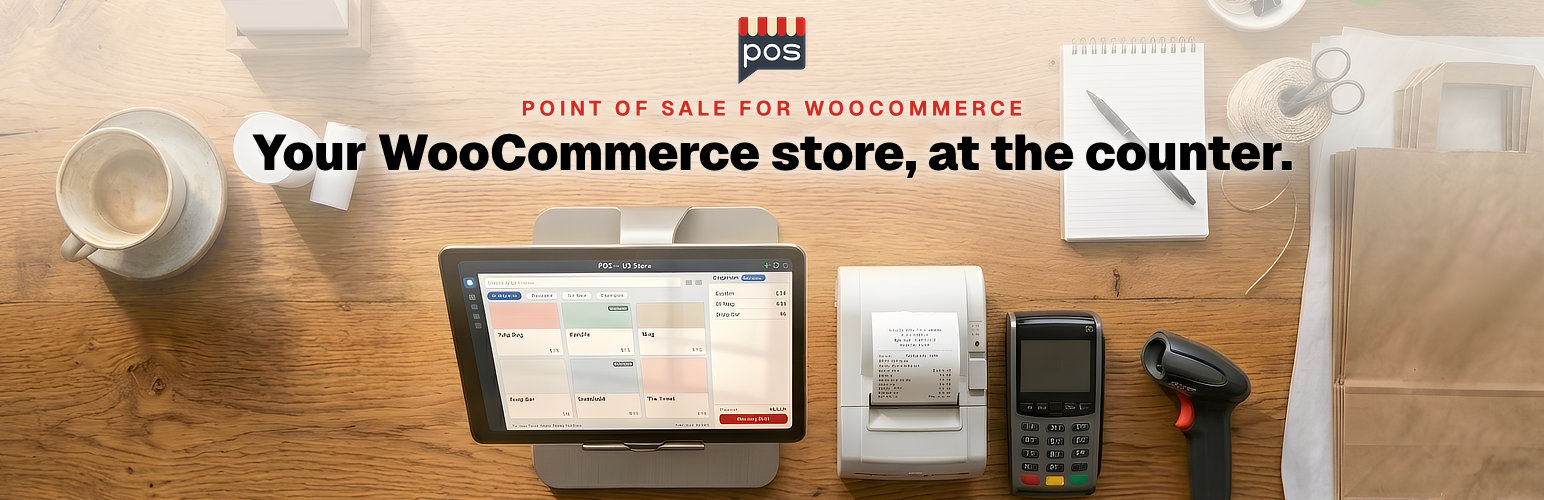
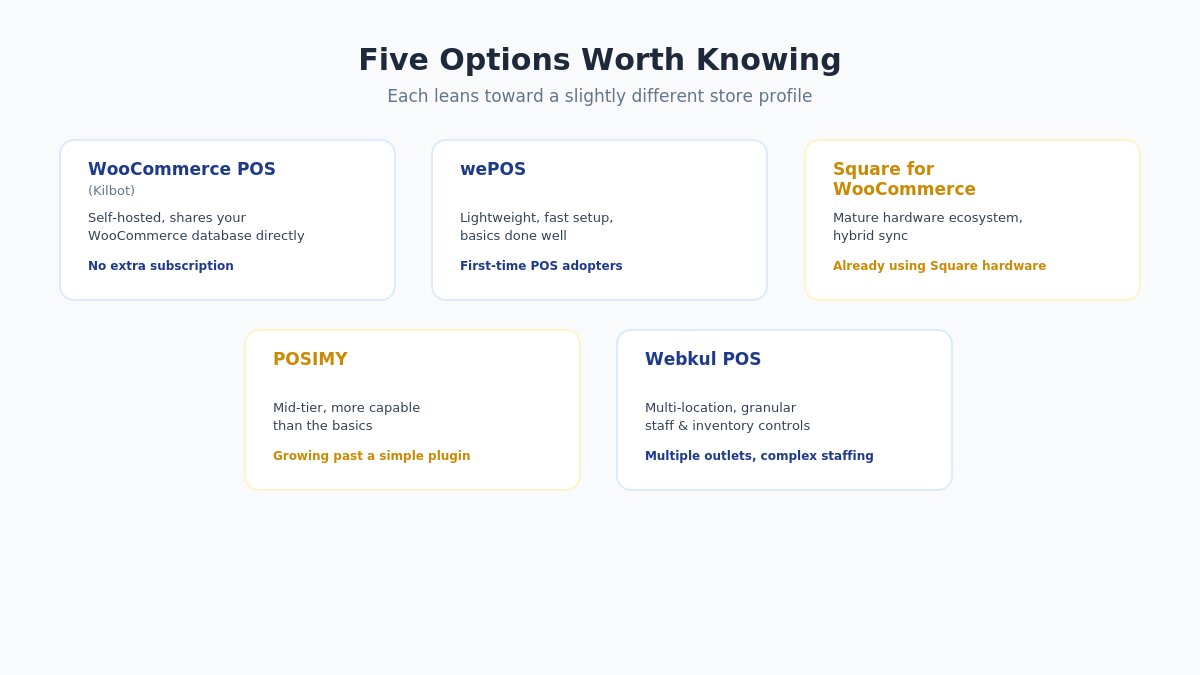
WooCommerce POS (by Kilbot)
A self-hosted POS system that runs on the same WooCommerce database as your store — meaning there’s no separate system to sync at all, because it isn’t a separate system in the first place. Since it shares your database directly, every transaction rung up at the counter is immediately and natively a WooCommerce order, with none of the “translate between two systems” complexity that comes with a third-party integration.
The interface is designed to work on a tablet or touchscreen device at the counter, with a product grid, barcode scanning support, and standard retail functions like split payments, discounts applied at checkout, and customer lookup tied to your existing WooCommerce customer accounts.
Best for: stores that specifically want to avoid an additional monthly subscription for POS functionality and are comfortable self-hosting. The free version covers core functionality; the premium tier adds features like advanced payment gateway support, CRM tools, and more detailed reporting.
Trade-off: because it’s self-hosted and tightly coupled to your WordPress install, performance and reliability depend partly on your own hosting — a self-hosted approach gives you more control but also more responsibility. If your hosting struggles under load, that affects your checkout counter the same way it affects your website.
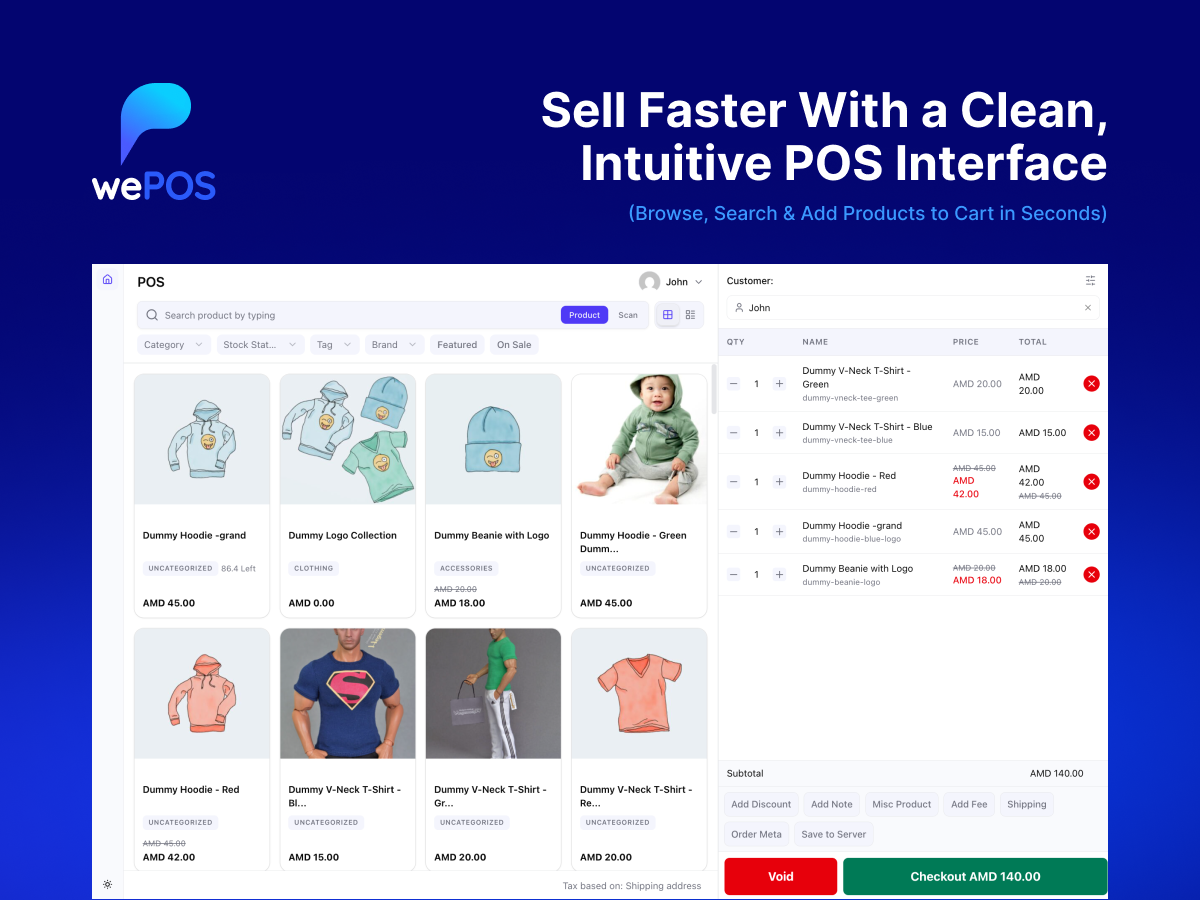
wePOS
A lighter-weight, simpler option aimed specifically at stores that don’t need an extensive feature set — quick setup, a clean interface, and the basics done well rather than an exhaustive feature list. Setup typically takes well under an hour for a store with a modest product catalog, which is a meaningful advantage if your priority is getting something working quickly rather than configuring an elaborate system.
Best for: small stores or first-time POS adopters who want something running quickly without a steep configuration process, and whose in-person selling needs are relatively straightforward — a single register, a modest product catalog, and standard payment methods.
Trade-off: as your store grows — multiple registers, multiple staff accounts with different permission levels, more complex inventory needs — wePOS’s simplicity can start to feel limiting, and you may outgrow it faster than a more feature-complete option. Migrating to a more capable system later is possible but does mean a second setup process down the line.
Square for WooCommerce
Square POS integration with WooCommerce
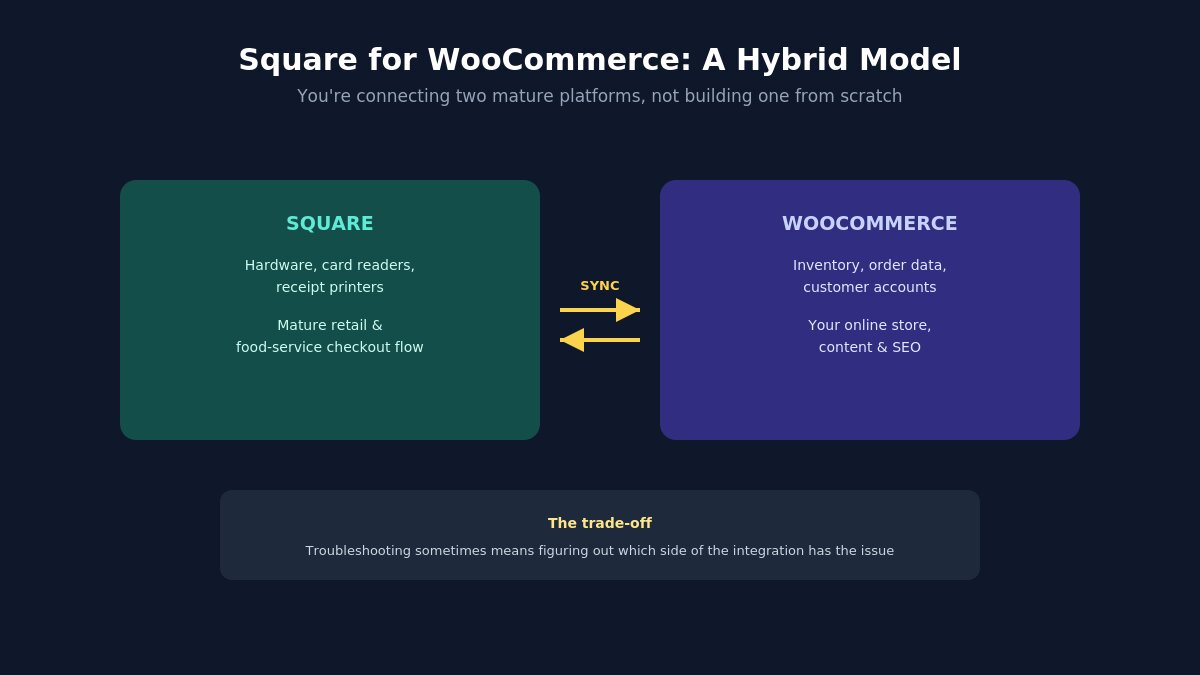
Rather than being a POS built specifically for WooCommerce, this connects WooCommerce to Square’s existing, mature point-of-sale ecosystem — meaning you get Square’s well-established hardware (card readers, terminals, receipt printers) and its established retail feature set, synced back into your WooCommerce inventory and order data.
This matters more than it might initially sound, because Square’s hardware and checkout flow have been refined over many years of dedicated retail and food-service use — you’re inheriting that maturity rather than relying on a WooCommerce-specific plugin’s more limited hardware testing and support.
Best for: stores that already use, or plan to use, Square’s hardware and want that ecosystem’s polish and reliability rather than building a POS workflow from scratch inside WordPress. Also a strong fit if you sell across multiple channels beyond just your WooCommerce store and Square already serves as your unifying point.
Trade-off: you’re now depending on two platforms instead of one, and while the sync is generally solid, troubleshooting an issue sometimes means figuring out which side of the integration actually has the problem — is it a WooCommerce issue, a Square issue, or the connection between them. This adds a layer of diagnostic complexity that a single self-hosted system doesn’t have.
POSIMY
Positioned as a mid-tier option — more capable than a bare-bones simple plugin, without the complexity of a full enterprise retail system. It aims to balance a reasonably complete feature set (multiple payment methods, discount rules, basic staff accounts) against a setup process that doesn’t require extensive technical configuration.
Best for: growing stores that have outgrown the most basic POS plugins but don’t yet need the full feature depth (multi-location inventory, complex staff permission hierarchies) that a large multi-outlet retailer would require — the middle ground between wePOS’s simplicity and Webkul’s depth.
Trade-off: as a less universally known option compared to Square or Kilbot’s WooCommerce POS, support resources and community troubleshooting content are comparatively thinner if you hit an unusual edge case — worth factoring in if you’re not comfortable troubleshooting independently.
Webkul POS
Aimed at stores with more complex operational needs — multiple outlets, more granular staff and inventory controls — positioned toward the higher end of what a small-to-mid-size retailer might need. Features typically include role-based staff permissions, multi-warehouse inventory tracking, and more detailed sales analytics broken down by location and staff member.
Best for: multi-location stores or businesses planning to scale into multiple physical outlets, where the more advanced inventory and staff management features justify the added complexity. Also a reasonable fit for a single location with unusually complex staffing needs — shift-based permissions, for instance.
Trade-off: genuinely overbuilt for a single small counter or pop-up — the extra configuration overhead isn’t worth it if your actual need is one register at one location. The learning curve for staff and the initial setup time both scale with the feature depth.
A Side-by-Side Snapshot
WooCommerce POS plugin comparison table 2026
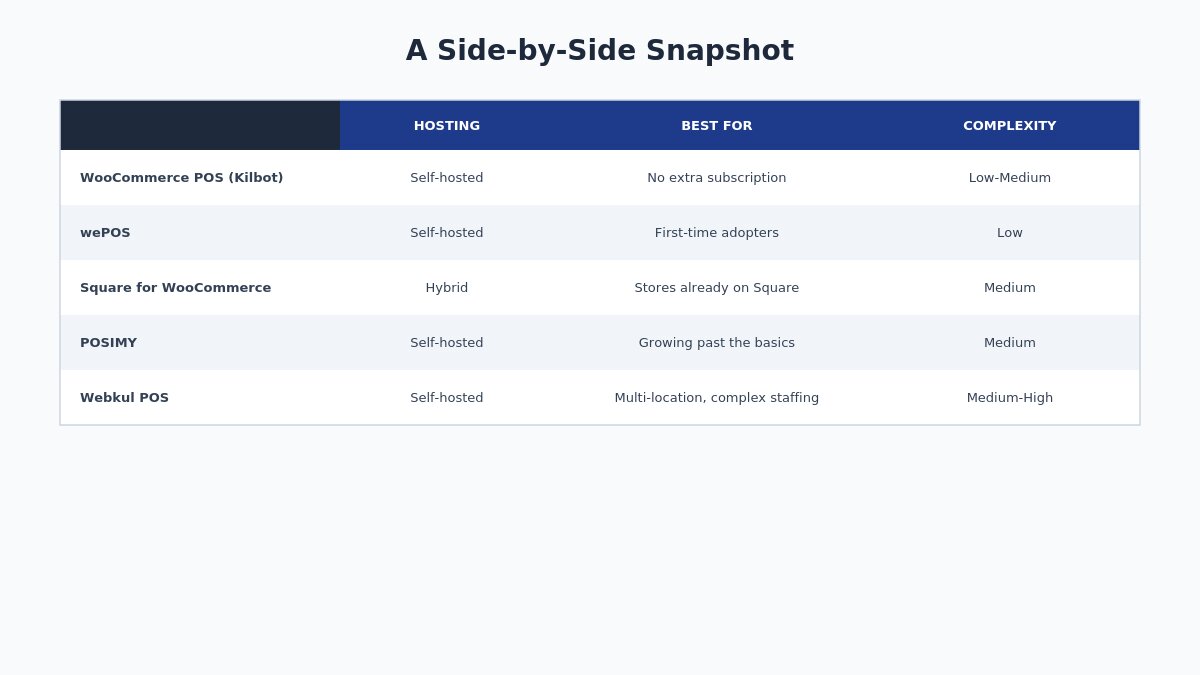
Best for
Hosting model
Complexity
WooCommerce POS (Kilbot)
Single-database simplicity, no extra subscription
Self-hosted
Low-Medium
wePOS
First-time POS adopters, simple needs
Self-hosted
Low
Square for WooCommerce
Stores already using Square hardware
Hybrid (Square + WooCommerce)
Medium
POSIMY
Growing stores past the basics
Self-hosted
Medium
Webkul POS
Multi-location, complex staffing
Self-hosted
Medium-High
How Your Business Type Changes the Right Answer
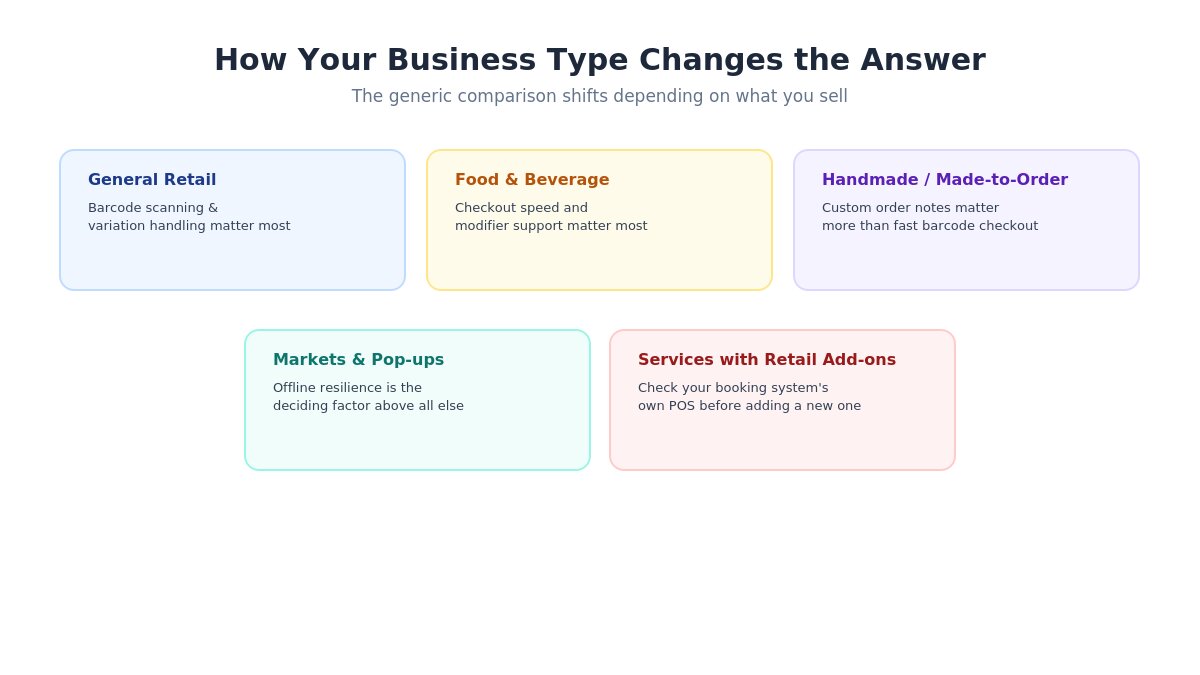
Choosing a WooCommerce POS plugin by business type
The comparison above assumes a fairly generic retail counter, but the right choice shifts meaningfully depending on what you’re actually selling and how:
General retail (clothing, gifts, home goods). Barcode scanning and variation handling (size, color) matter most here — confirm your chosen plugin handles product variations at the counter as smoothly as your online store does, since this is a common gap in lighter-weight options.
Food and beverage. Speed at checkout during rush periods matters more than almost anything else, along with the ability to handle modifiers (add-ons, substitutions) cleanly. Square’s food-service maturity is a genuine advantage here over WooCommerce-native options that weren’t originally built with restaurant-style modifiers in mind.
Handmade or made-to-order goods. Inventory tracking matters less than order and customization notes — a plugin that lets staff attach custom notes to an in-person order (for later fulfillment or follow-up) is more valuable here than one focused purely on fast barcode-driven checkout.
Markets, pop-ups, and events. Offline resilience is the deciding factor above all else, since market and event WiFi is notoriously unreliable. Prioritize whichever option you’ve personally verified handles a dropped connection gracefully, even if it means sacrificing some feature depth elsewhere.
Services with retail add-ons (salons, studios, small gyms selling merchandise). The POS need here is often secondary to a booking or scheduling system — check whether your existing booking plugin has its own point-of-sale capability before adding a separate dedicated POS plugin on top of it, since running both can create more reconciliation work, not less.
Migrating From an Existing System
If you’re not starting from zero — you’ve been using a separate standalone POS system, or a different platform’s in-person checkout — the migration process deserves its own deliberate planning rather than being treated as a footnote to the setup steps above:
Export your historical sales and customer data from your current system before switching, even if your new POS plugin doesn’t import it directly — having the historical record preserved separately matters for tax and business-performance purposes.
Run both systems in parallel for a short overlap period if at all feasible, rather than a hard cutover on a single day. A week of parallel operation, even manually, surfaces integration issues while you still have the old system as a fallback.
Migrate your product catalog carefully, checking that SKUs, pricing, and variations map correctly rather than assuming an automated import captured everything correctly the first time.
Plan the cutover for a slow period, not your busiest selling day or season — the first week on a new system is exactly when you want lower stakes if something needs troubleshooting.
Setting Up Your First WooCommerce POS Integration
Regardless of which option fits your store, the setup sequence looks broadly similar, and getting the order right avoids the most common early mistakes:
Audit your current inventory data first. Before connecting any POS system, make sure your WooCommerce product data — SKUs, stock counts, variations — is actually accurate. A POS integration built on top of messy inventory data just synchronizes the mess in real time instead of fixing it.
Start with a single register or location, even if you eventually plan to scale to more. Working out configuration issues on one counter is far easier than debugging the same issues across three locations simultaneously.
Test the offline behavior deliberately. Don’t wait for your internet to actually go down at a busy moment to discover how your chosen plugin handles it — intentionally disconnect during a quiet testing period and confirm transactions queue and sync correctly once you’re back online.
Train staff on the exception cases, not just the happy path. Returns, partial refunds, and split payments are where POS software most commonly trips up new staff — walk through these scenarios during training rather than assuming the standard checkout flow covers everything they’ll encounter.
Reconcile manually for the first week, even with a system that claims automatic syncing. Confirming the numbers actually match by hand for the first several days catches integration issues before they compound into a genuinely confusing inventory discrepancy weeks later, at which point tracing the original error back to its source becomes far more time-consuming than catching it early would have been.
Common Mistakes to Avoid
Common WooCommerce POS setup mistakes to avoid
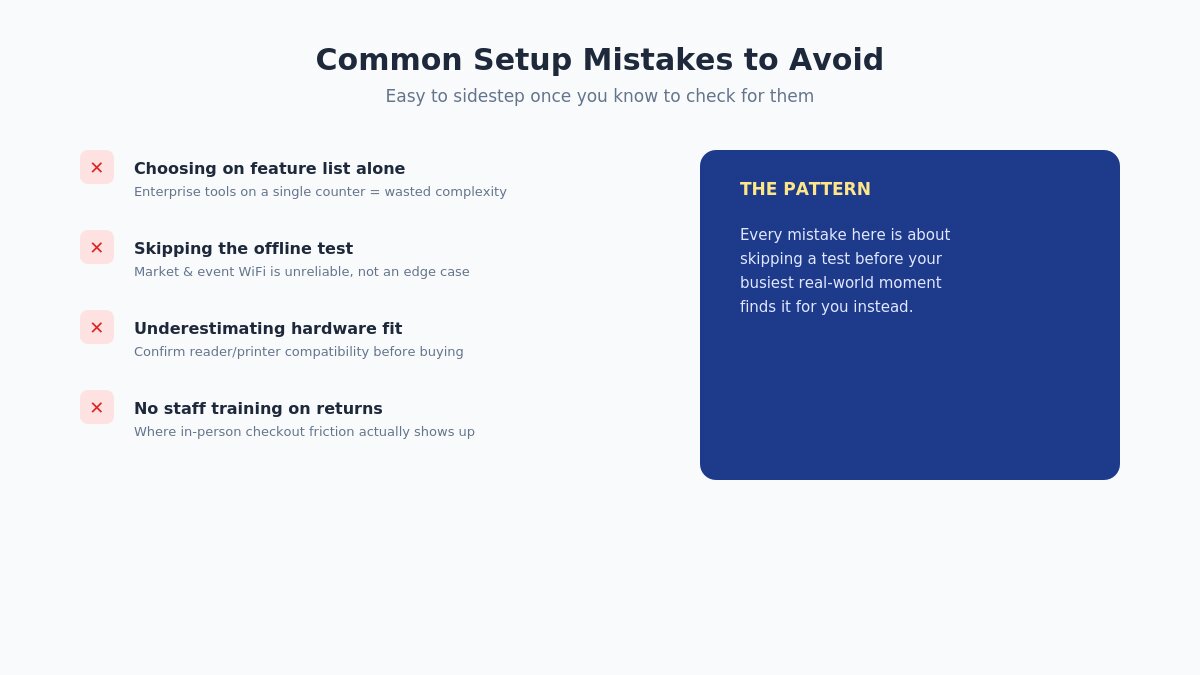
Choosing based on feature list alone, without matching to actual store size. The most feature-complete option isn’t automatically the right one — a single-counter pop-up shop configured with enterprise-grade multi-location tools is paying in complexity for capability it doesn’t use.
Skipping the offline test. This is the scenario that actually determines whether a POS system holds up under real conditions — an unreliable internet connection at a market stall or pop-up location is common, not an edge case.
Underestimating hardware compatibility. Confirm your card reader, receipt printer, and barcode scanner (if you use one) are actually supported by your chosen plugin before purchasing hardware, rather than assuming generic compatibility.
Not training staff on returns and refunds specifically. This is consistently where in-person checkout friction shows up in practice, and it’s the scenario most staff training skips in favor of covering the standard sale flow.
Ignoring reporting until tax season. Unified reporting is one of the main reasons to run a proper POS integration in the first place — check that the reports you actually need (sales by channel, by product, by time period) are genuinely accessible before you need them urgently.
Cost Considerations Beyond the Sticker Price
The plugin’s own price is rarely the full cost picture. Factor in:
Hardware. Card readers, receipt printers, and barcode scanners are a real upfront cost regardless of which software you choose, and compatibility varies by plugin — confirm specific hardware support before purchasing anything, since not every reader works with every plugin.
Payment processing fees. These apply on top of any plugin subscription and vary by processor — confirm the specific rate for in-person (card-present) transactions, which sometimes differs from your online store’s existing card-not-present rate, occasionally in your favor since in-person transactions carry lower fraud risk for processors.
Staff training time. A more complex system costs real hours in training, particularly if staff turnover is a factor in your specific business — a seasonal or high-turnover retail operation should weight ease-of-training more heavily than a stable, long-tenured small team would need to.
Support and troubleshooting. Self-hosted options put more of the troubleshooting burden on you or your developer; hybrid options like Square shift some of that to the third-party platform’s own support, which is worth factoring in if you don’t have reliable technical support on hand.
Ongoing subscription costs, if applicable. Some options are genuinely free at the core tier with paid upgrades for advanced features; others carry a recurring monthly cost from the start. Total this against your expected in-person sales volume to judge whether the fixed cost is proportionate to what you’re actually generating through that channel.
Which WooCommerce POS Actually Fits Your Store
If you’re running a single counter or occasional pop-up and want the simplest possible setup with no added monthly subscription, WooCommerce POS by Kilbot or wePOS are the sensible starting points — both keep everything inside your existing WooCommerce database rather than adding a second platform to manage.
If you already use or plan to use Square’s hardware and want a proven, polished retail experience at the counter, Square for WooCommerce gives you that ecosystem’s maturity, with the trade-off of managing a sync between two platforms rather than one unified system.
If you’re planning multiple locations or have more complex staffing and inventory needs than a single small counter, Webkul POS or a similarly capable option is worth the added setup complexity — but resist the temptation to over-provision for scale you don’t have yet, since the added configuration overhead is a real cost when your actual need is still one register at one location. It’s easier to migrate up to a more capable system once you’ve genuinely outgrown a simpler one than to carry unnecessary complexity from day one on a single counter that doesn’t need it.
Whichever option you land on, the underlying goal is the same one that matters more than any individual feature comparison: your online and in-person sales data should live in one place, updating in real time, so you’re making decisions based on your actual current inventory rather than reconciling two separate pictures of your business after the fact.
Building a WooCommerce store designed to handle both online and in-person selling well? Browse our WooCommerce WordPress themes.
Hello everyone! We’re Galussothemes content team, we love to write new blogs for WordPress Joomla! and other tech niches everyday. We’re talented young people who hold a strong passion for website development, designing, and marketing. Feel free to leave your comment if you have any issues or questions with our blogs.
Interesting with this topic? You also interest with this articles: